Tour

A short self-guided tour.

The journey from install to running, then five short sequences of real EduzOS screens. Scroll to play each one, then ask for the live demo.

The journey

Install, claim, set up, run.

What happens between an empty server and a school that is running.

  1. 1. Install

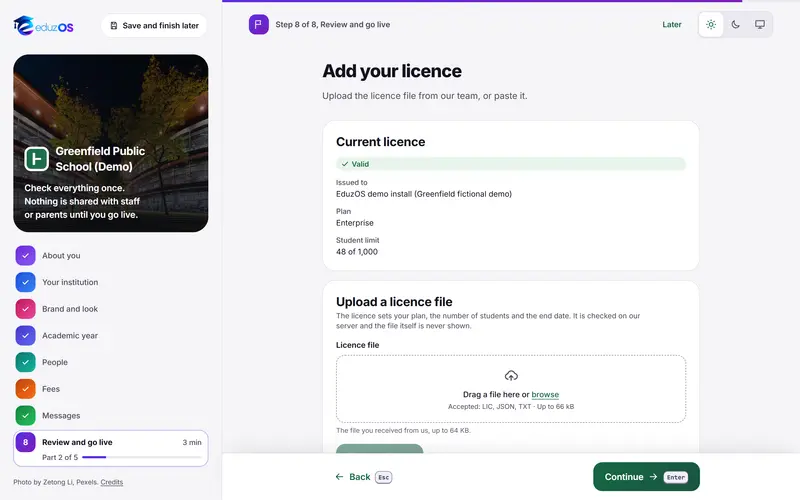
    Your operator checks the server and installs EduzOS from the deployment files with one tool, lmsctl. A new install runs the full product for a 30-day trial under one licence per school.
    More about install

  2. 2. Claim

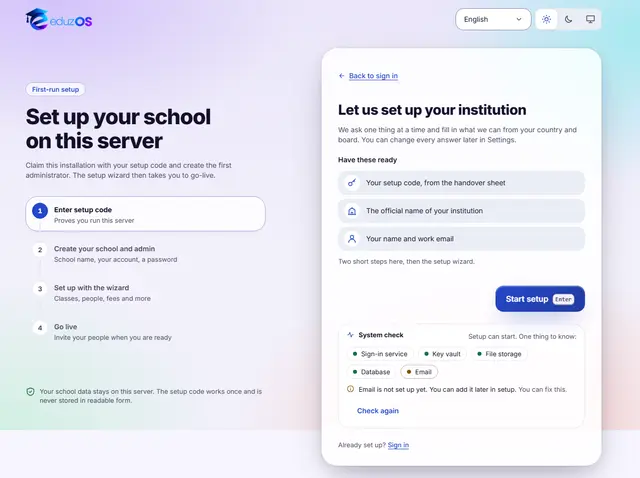
    The first-run screen runs a short system check. The school's first administrator claims the install with a one-time setup code read from the server, then sets a password.
    More about claim

  3. 3. Set up

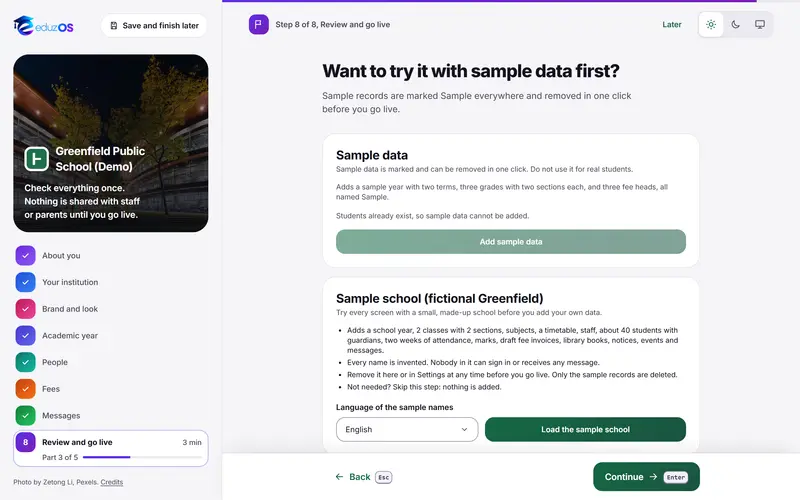
    A guided wizard covers institution, brand, academic year, people, fees, email and messages. A step can load fictional sample data so you can explore first, and remove it with a typed confirmation.
    More about set up

  4. 4. Run

    Each person signs in to their own workspace. Administrators can look at any role with an audited View as role. Upgrades and rollbacks use the same tool.

    More about run

Sequence 1 of 5

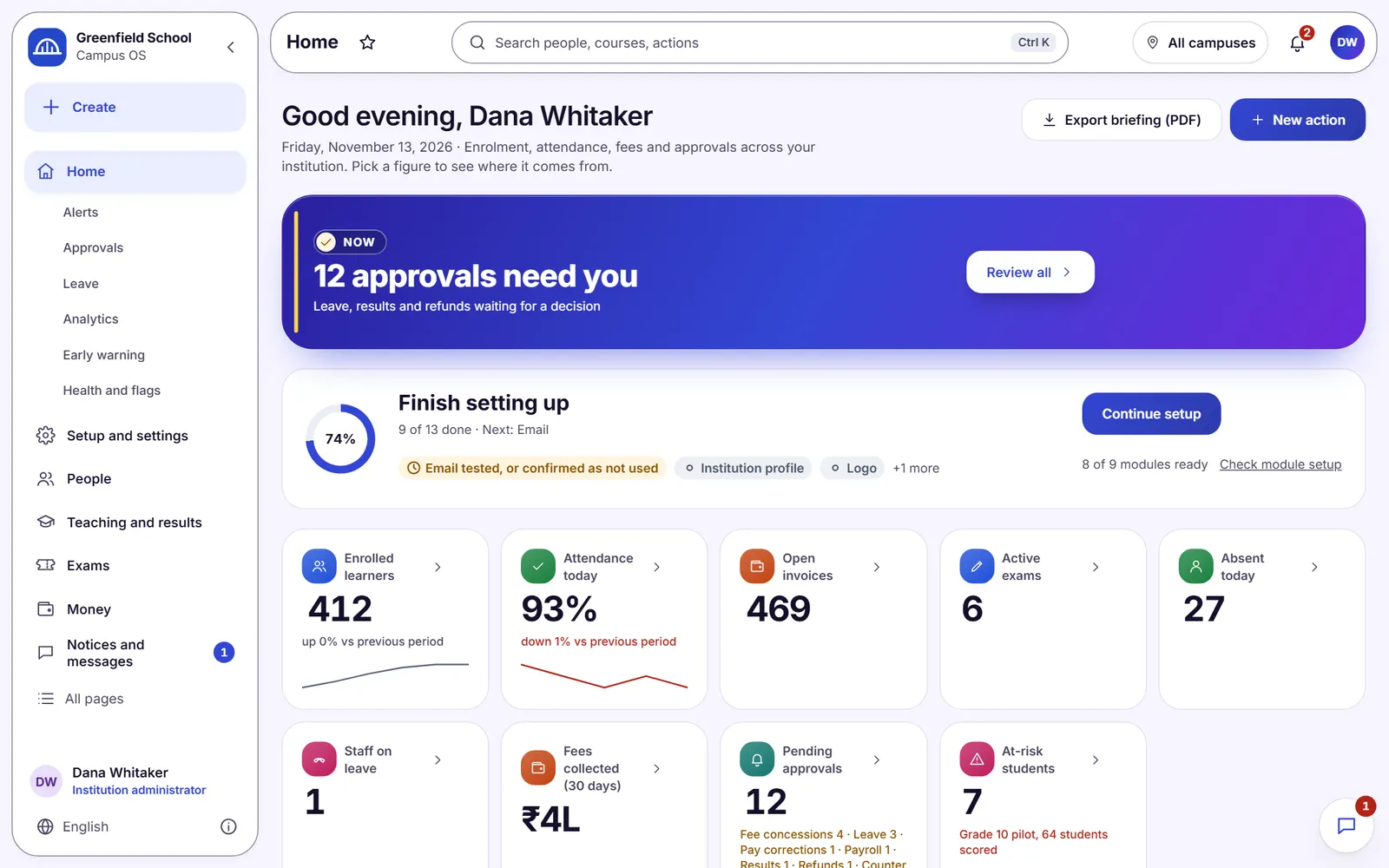
Each role gets its own home.

The same school as it looks from different seats. Each role signs in with its own account.

01 / 06 Principal home (same product, role-based shell and home)
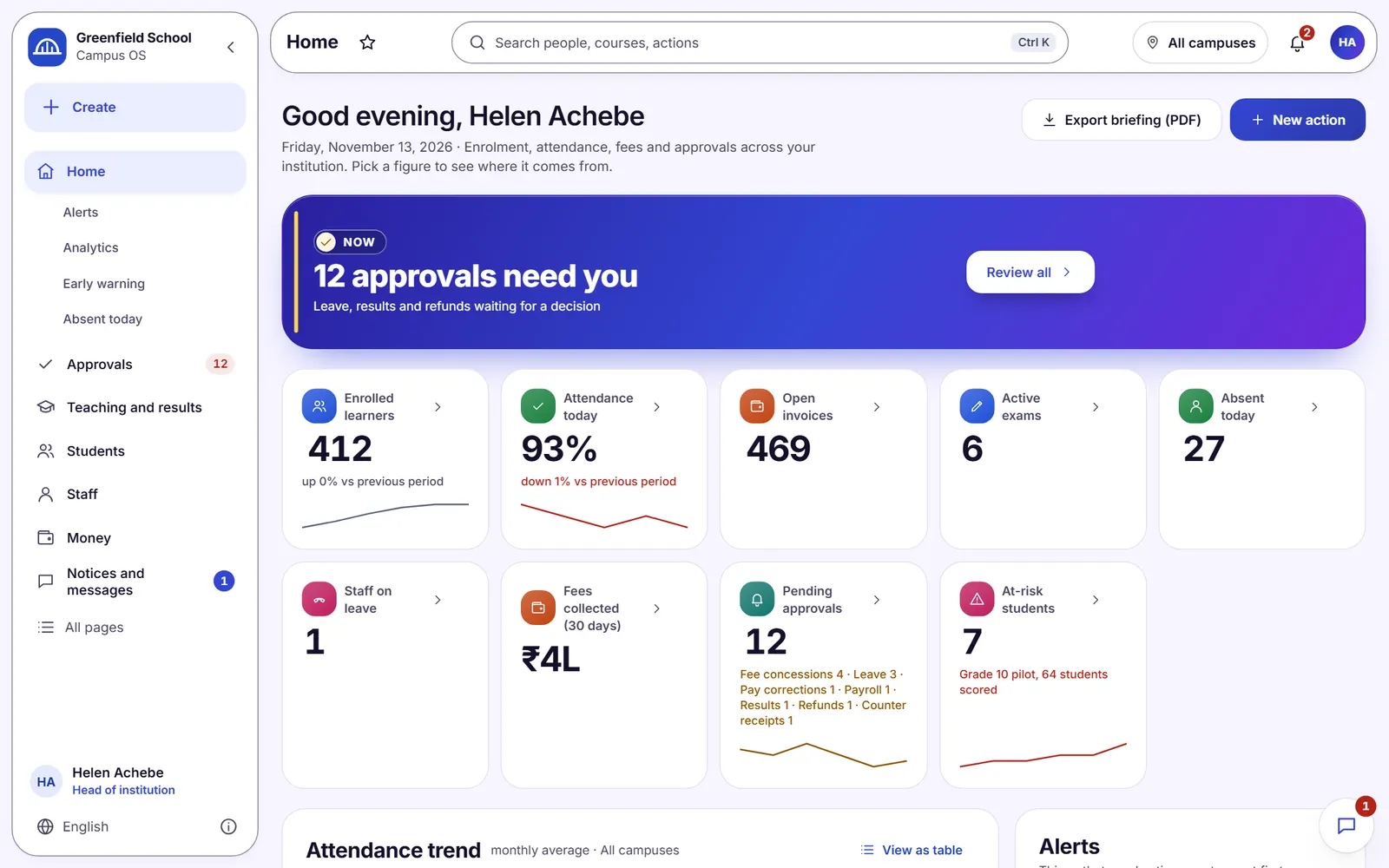
Each role gets its own home. Real product screens; Greenfield School is fictional.
Principal home (same product, role-based shell and home). Greenfield School is fictional.
FIG 1.1 Principal home (same product, role-based shell and home). Step 1 of 6.
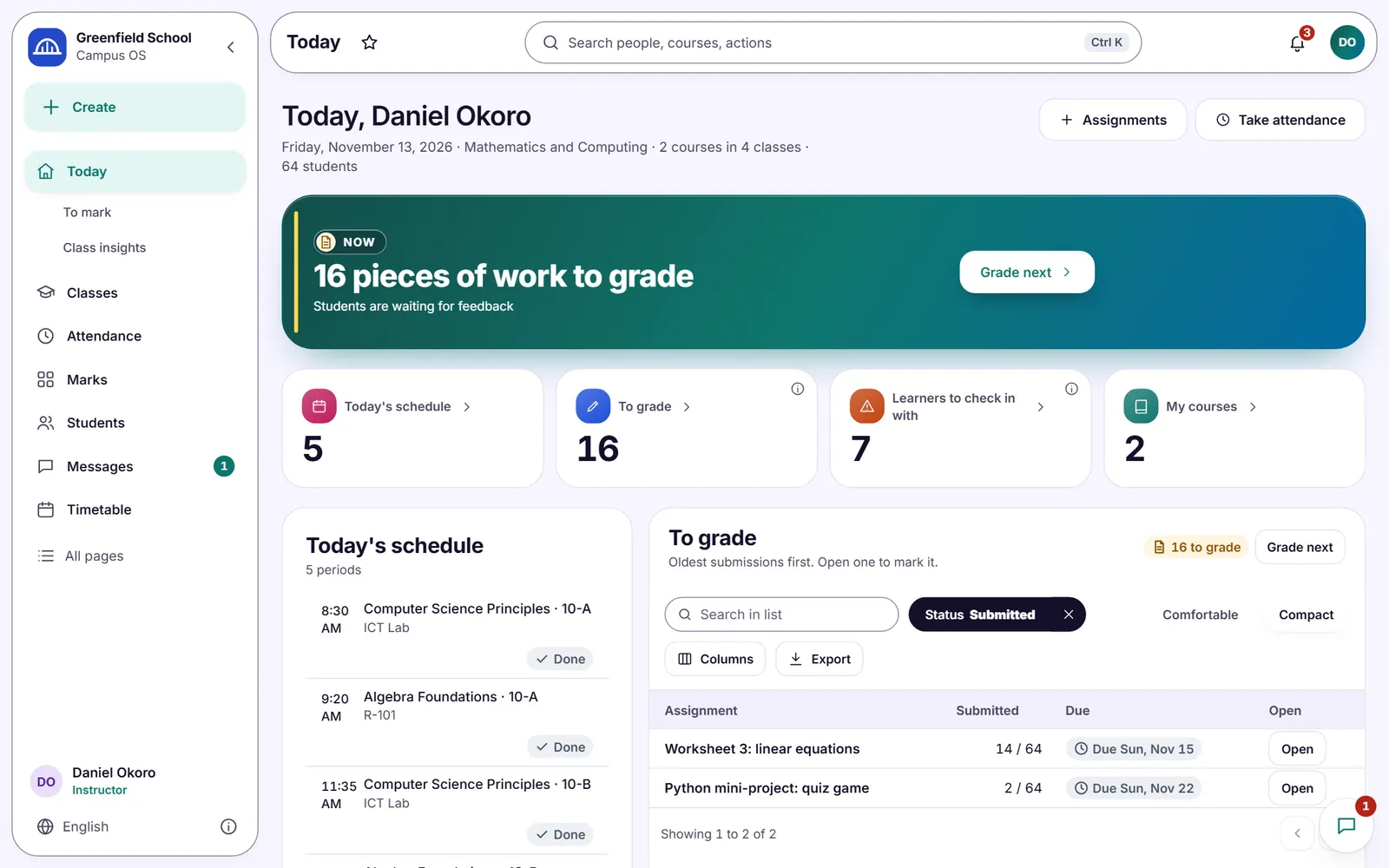
Teacher home (same product, role-based shell and home). Greenfield School is fictional.
FIG 1.2 Teacher home (same product, role-based shell and home). Step 2 of 6.
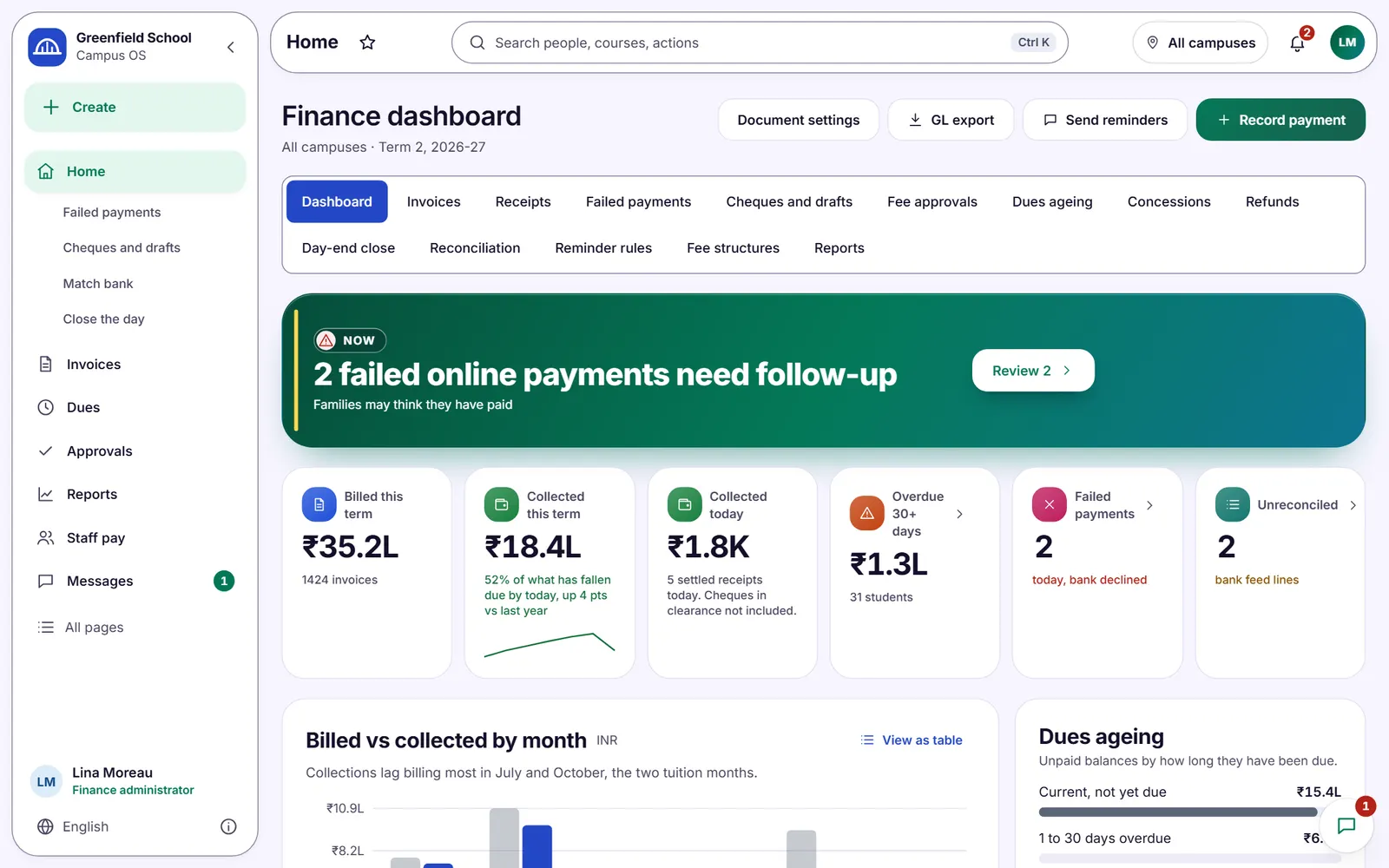
Finance home (same product, role-based shell and home). Greenfield School is fictional.
FIG 1.3 Finance home (same product, role-based shell and home). Step 3 of 6.
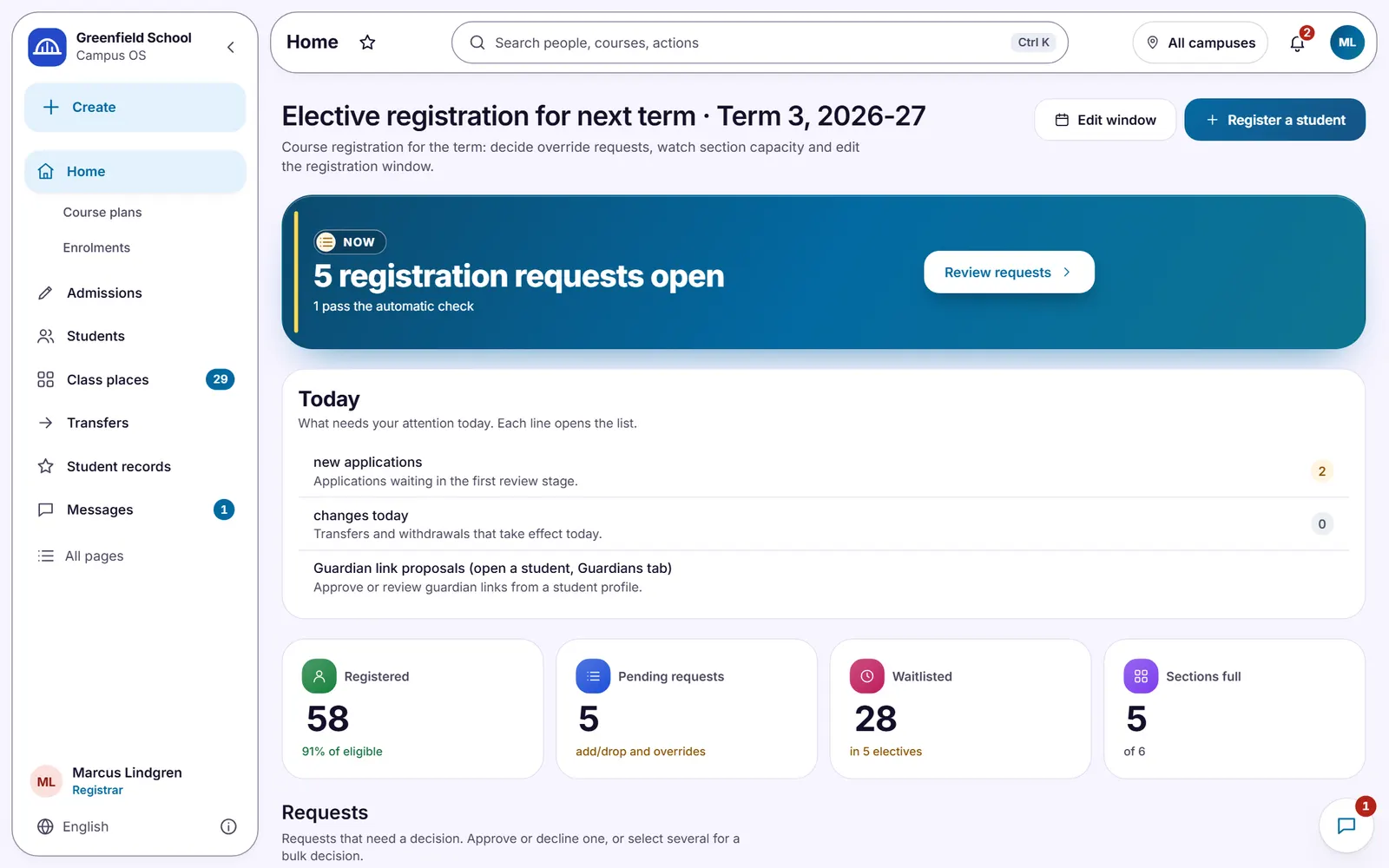
Registrar home (same product, role-based shell and home). Greenfield School is fictional.
FIG 1.4 Registrar home (same product, role-based shell and home). Step 4 of 6.
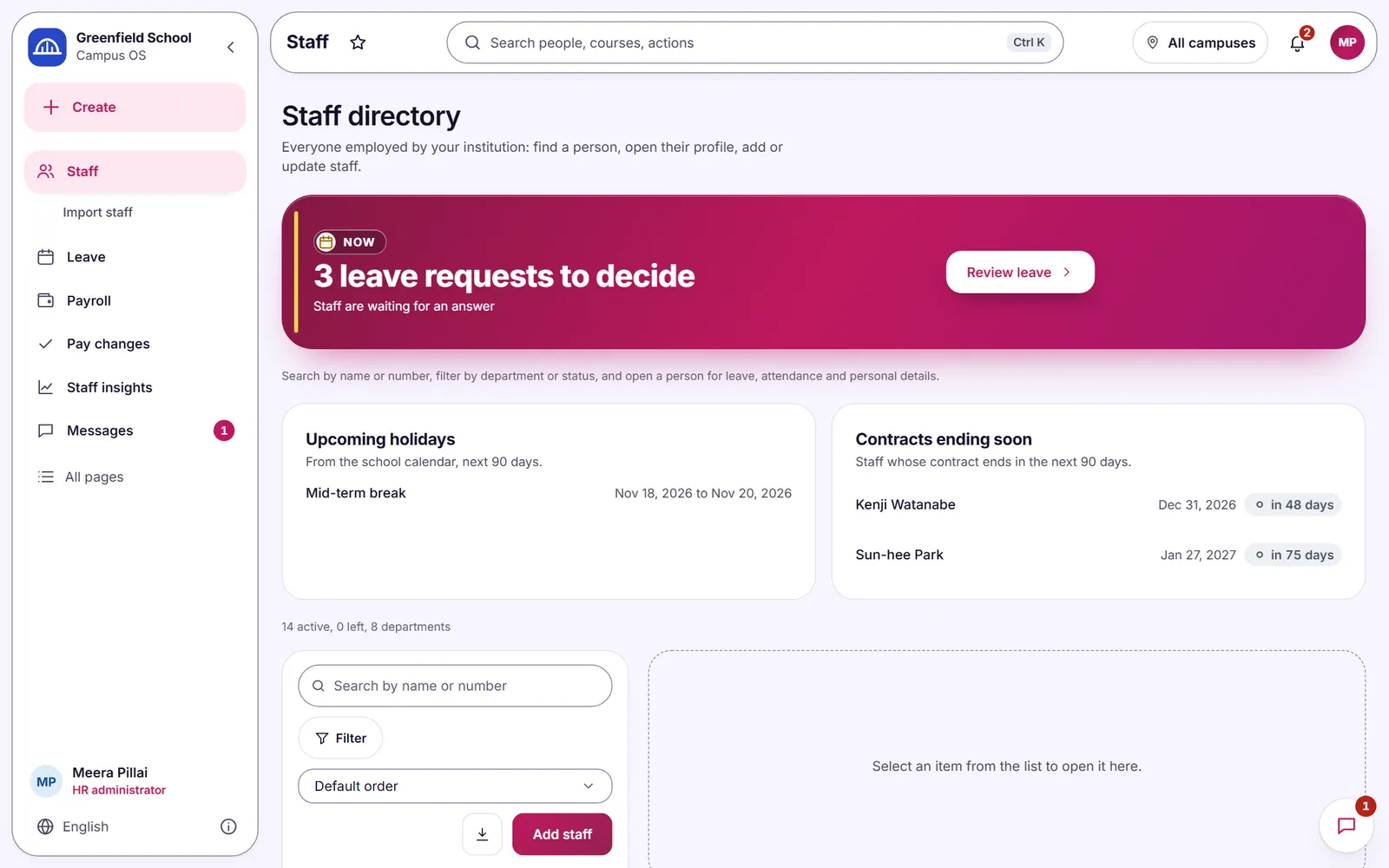
HR home (same product, role-based shell and home). Greenfield School is fictional.
FIG 1.5 HR home (same product, role-based shell and home). Step 5 of 6.
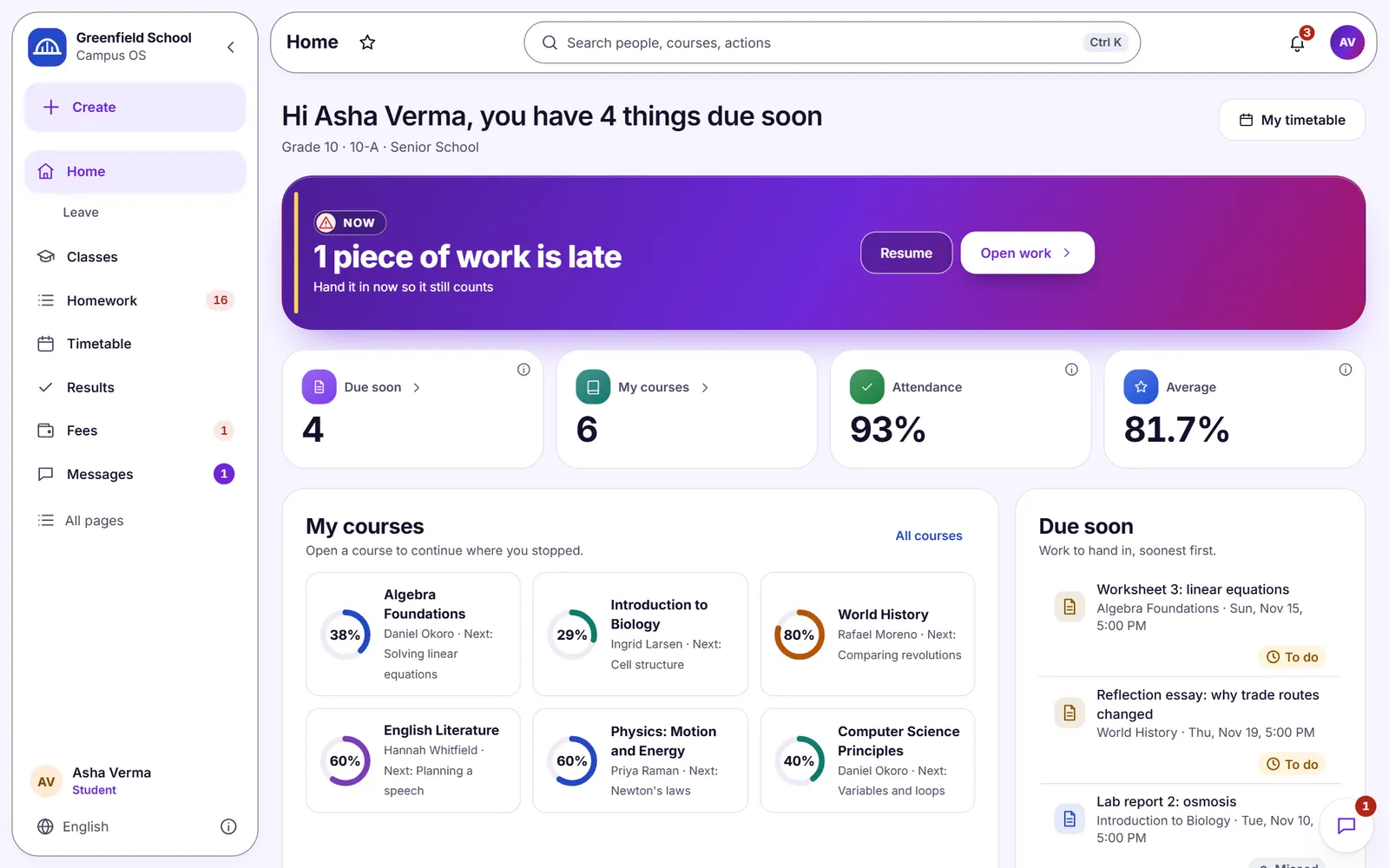
Student home (same product, role-based shell and home). Greenfield School is fictional.
FIG 1.6 Student home (same product, role-based shell and home). Step 6 of 6.

Sequence 2 of 5

Approve a request.

The head works through the approvals queue: open, confirm, done.

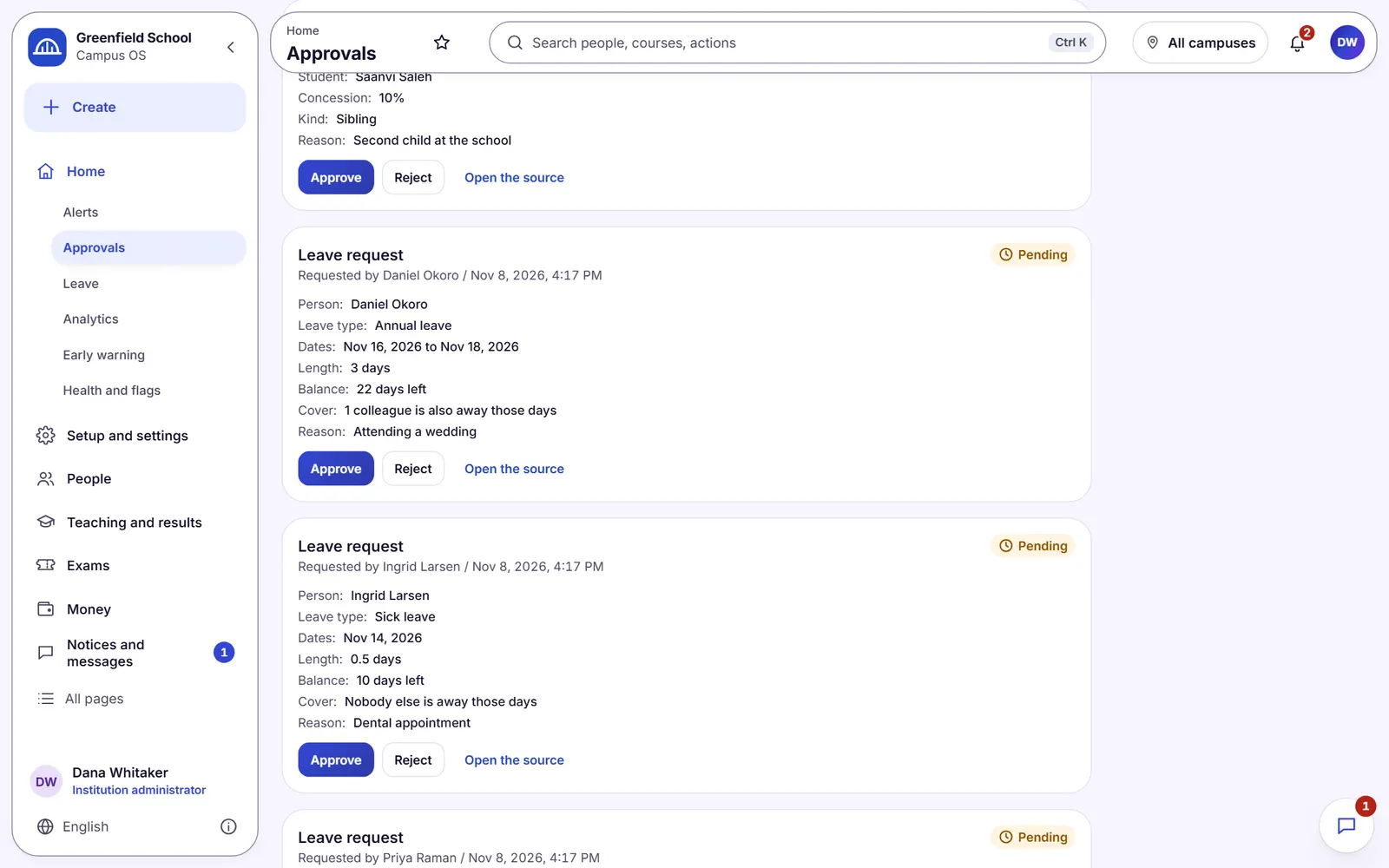
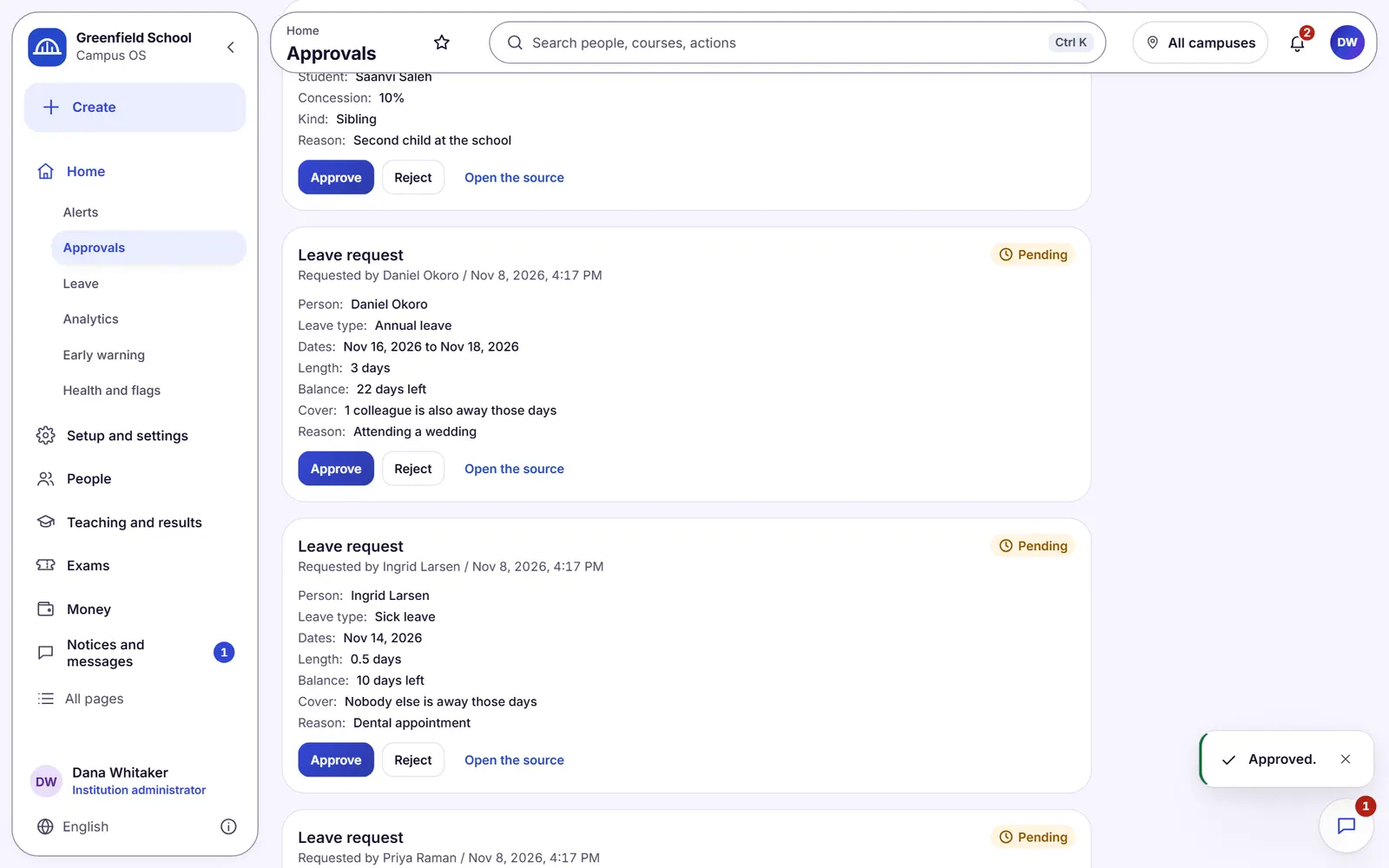
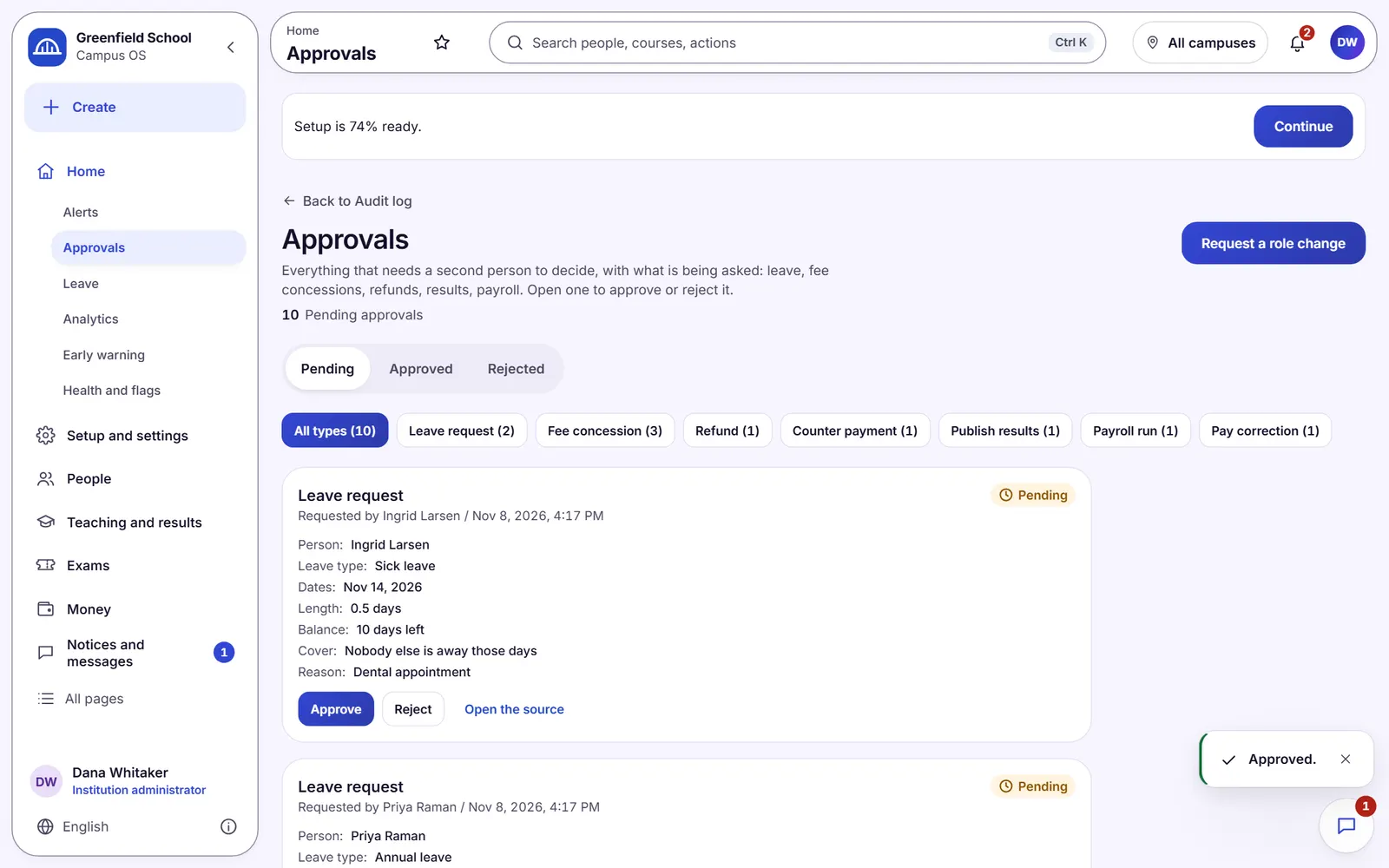
01 / 09 Approvals queue, 12 pending
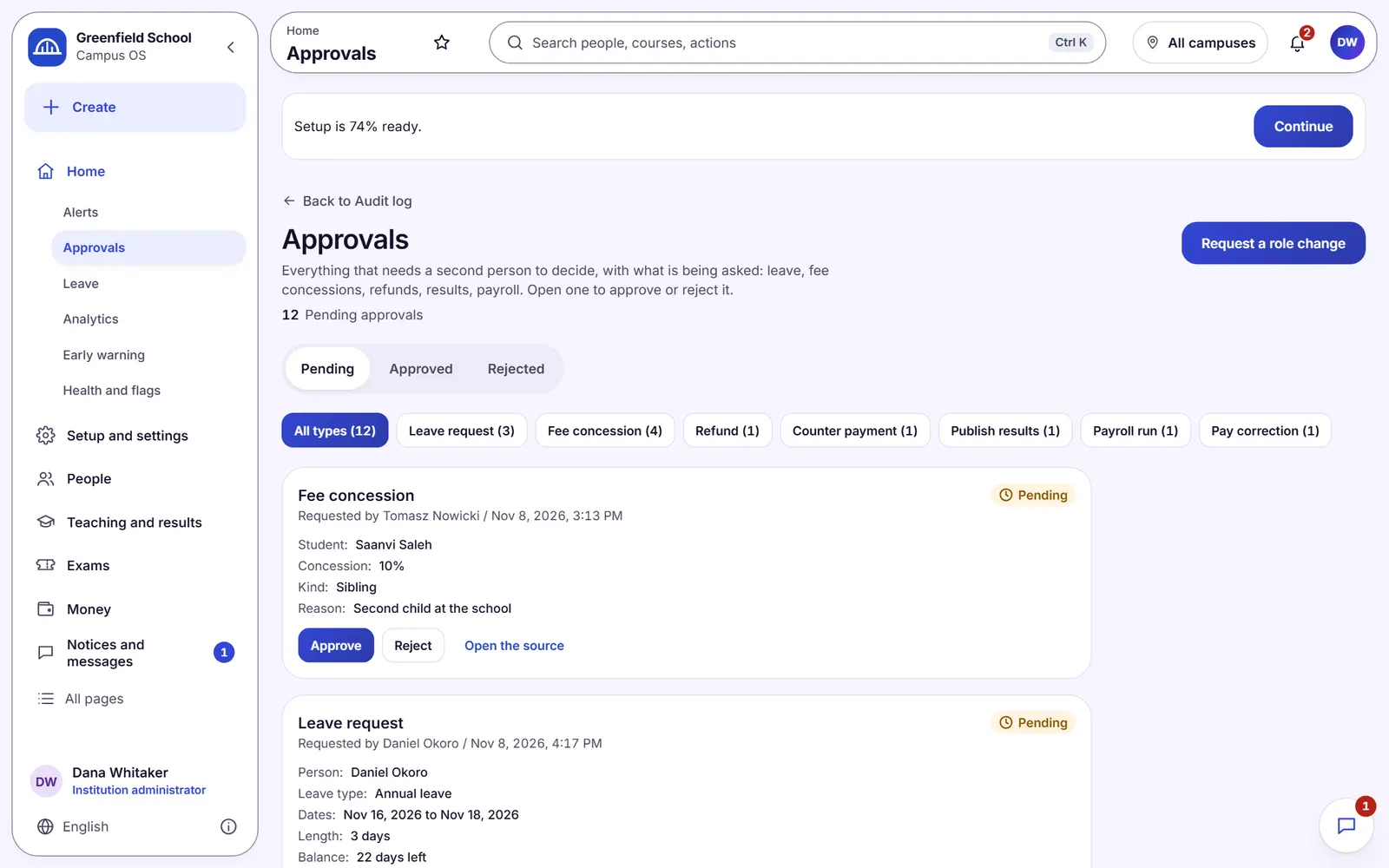
Approve a request. Real product screens; Greenfield School is fictional.
Approvals queue, 12 pending. Greenfield School is fictional.
FIG 2.1 Approvals queue, 12 pending. Step 1 of 9.
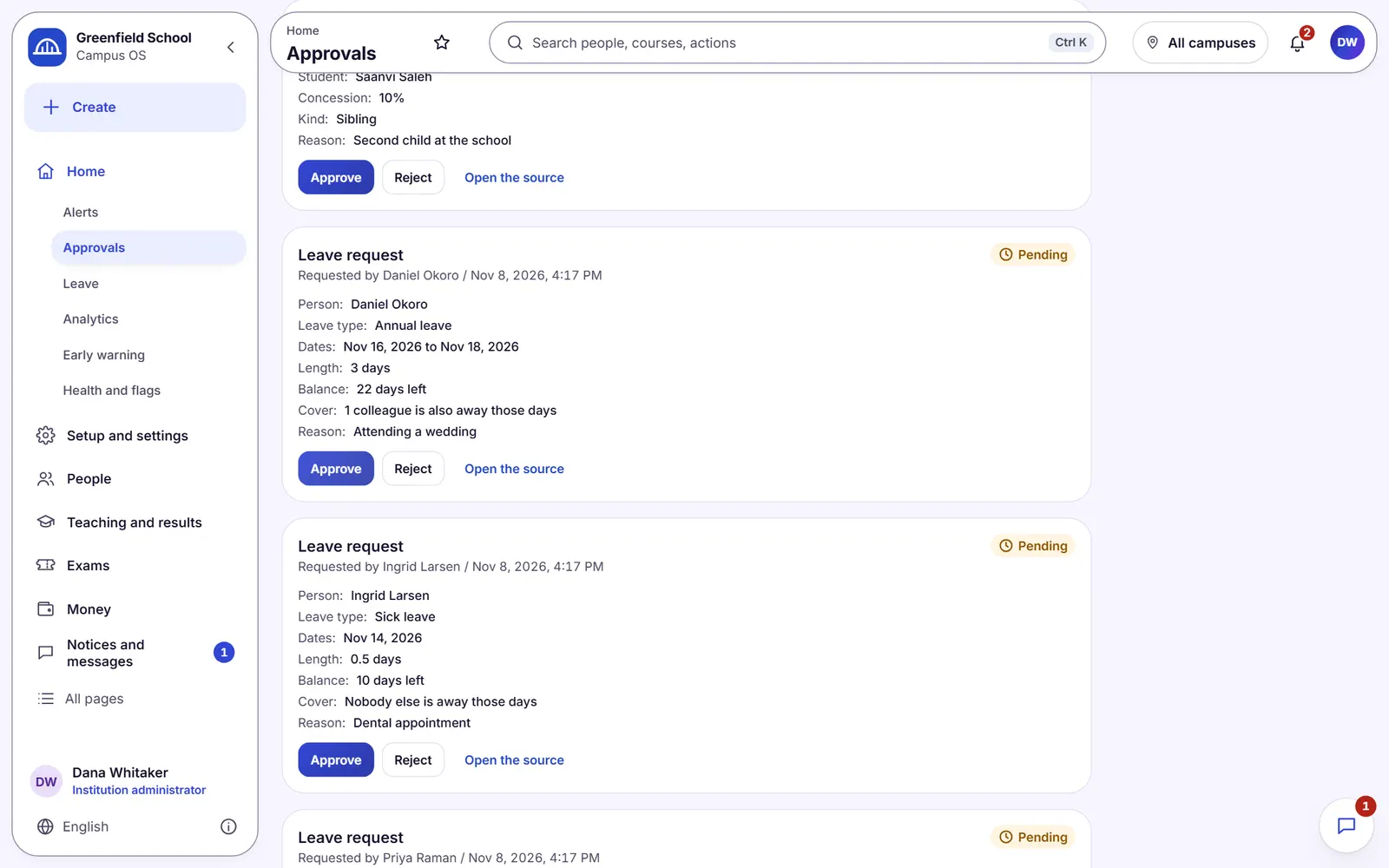
Row in view. Greenfield School is fictional.
FIG 2.2 Row in view. Step 2 of 9.
Hover on Approve. Greenfield School is fictional.
FIG 2.3 Hover on Approve. Step 3 of 9.
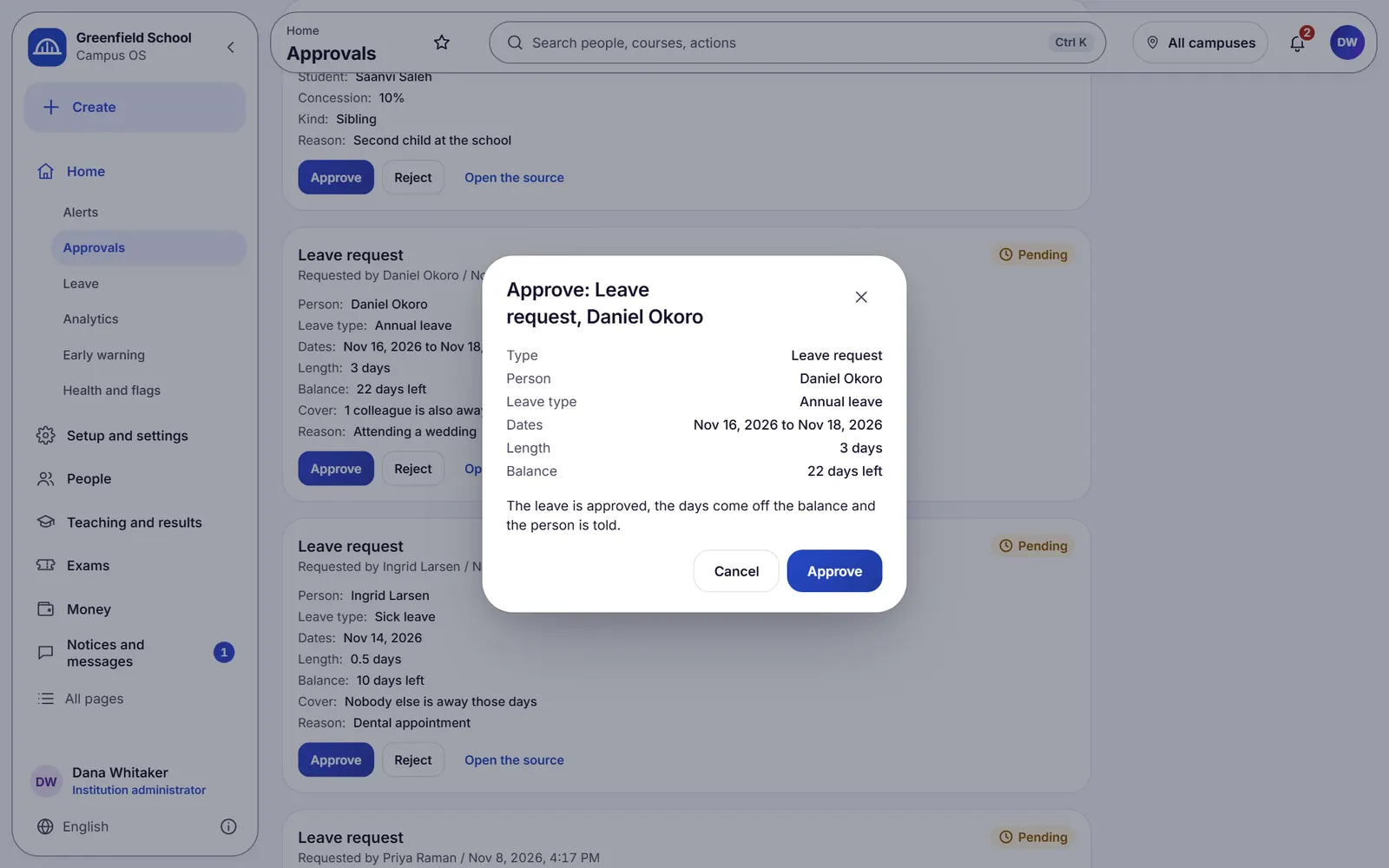
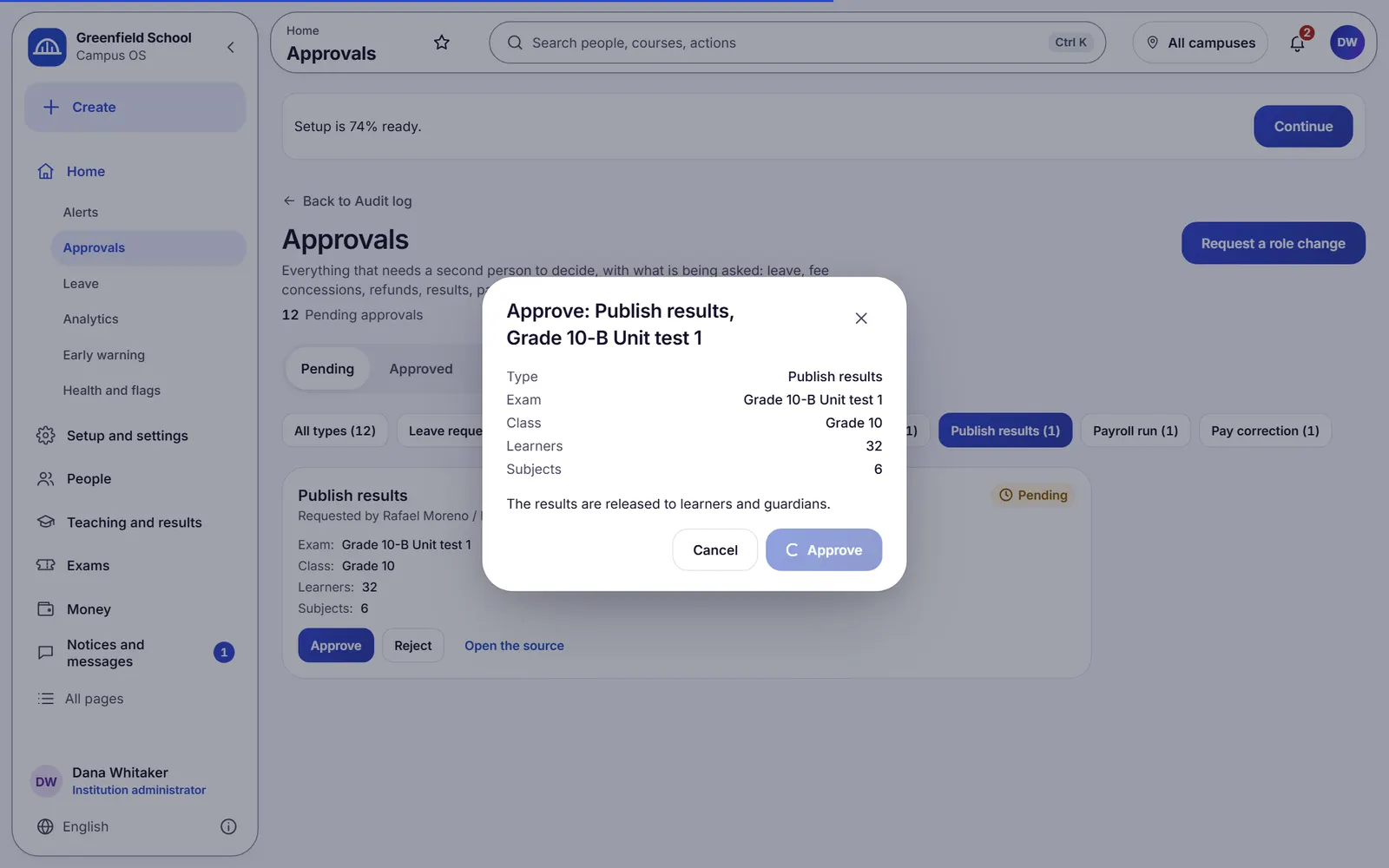
Confirm dialog opens. Greenfield School is fictional.
FIG 2.4 Confirm dialog opens. Step 4 of 9.
Confirmed, decision being saved. Greenfield School is fictional.
FIG 2.5 Confirmed, decision being saved. Step 5 of 9.
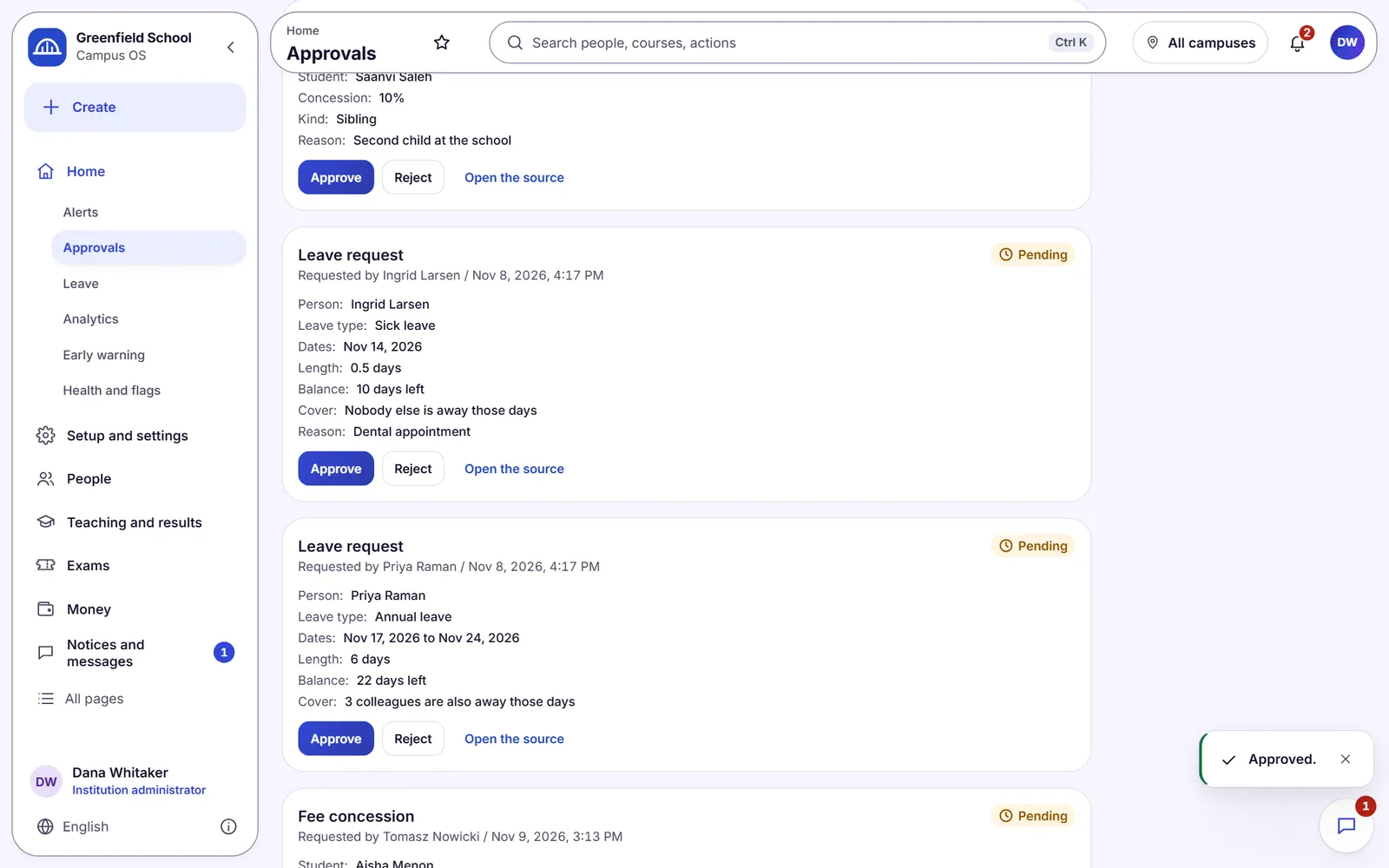
Request approved, queue updated. Greenfield School is fictional.
FIG 2.6 Request approved, queue updated. Step 6 of 9.
Next request, hover. Greenfield School is fictional.
FIG 2.7 Next request, hover. Step 7 of 9.
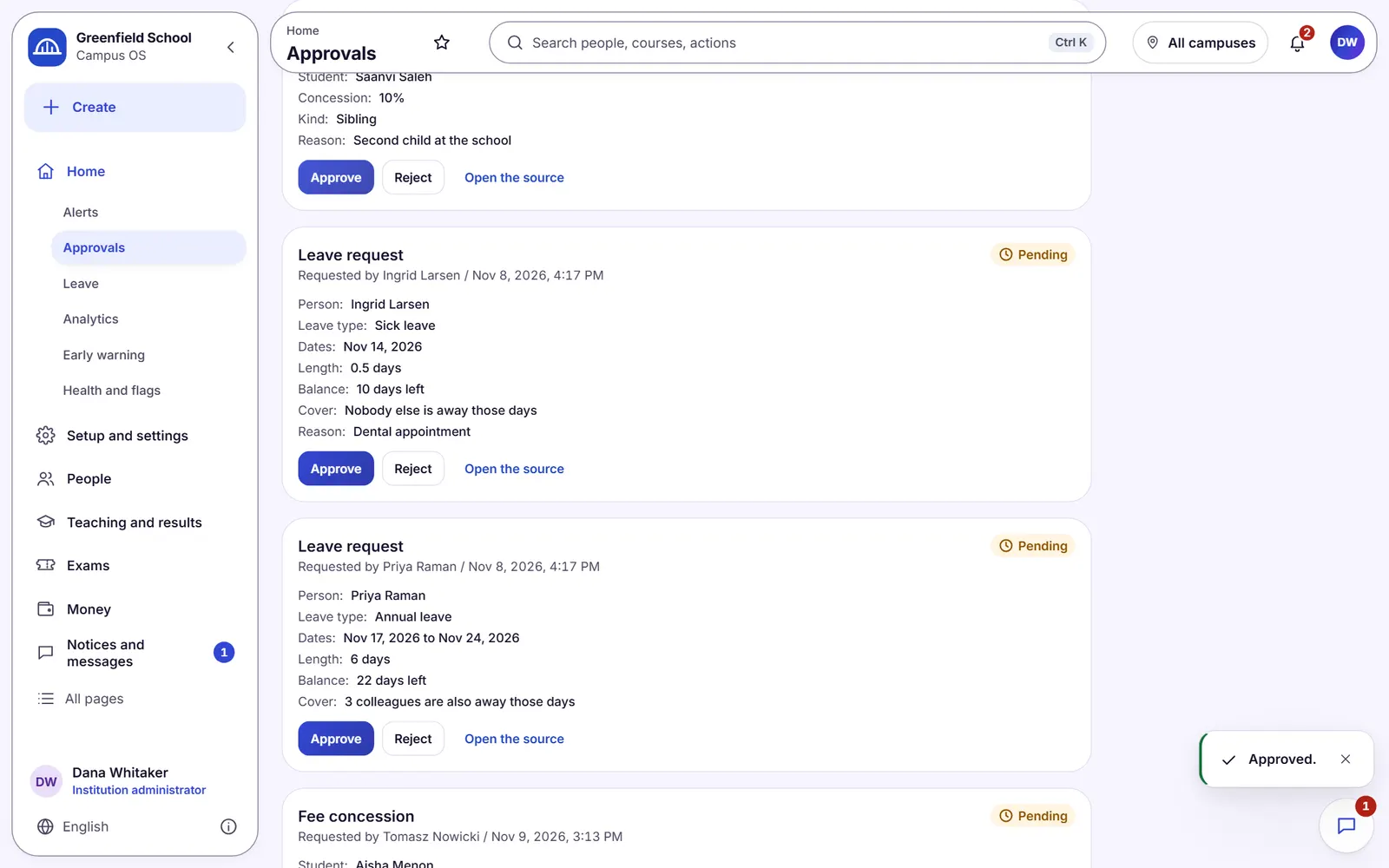
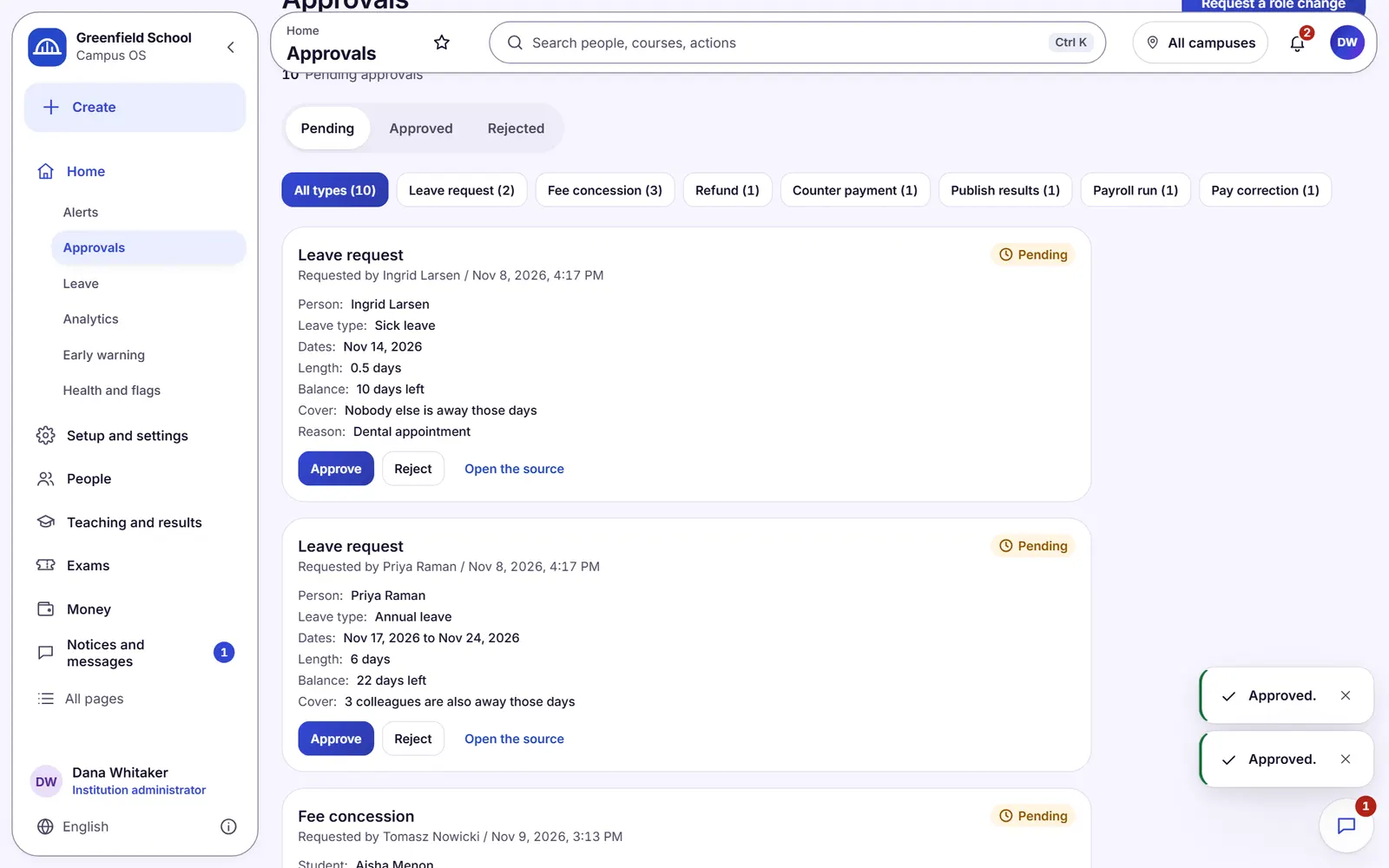
Second request approved. Greenfield School is fictional.
FIG 2.8 Second request approved. Step 8 of 9.
Back to top, counts reduced. Greenfield School is fictional.
FIG 2.9 Back to top, counts reduced. Step 9 of 9.

Sequence 3 of 5

Publish results.

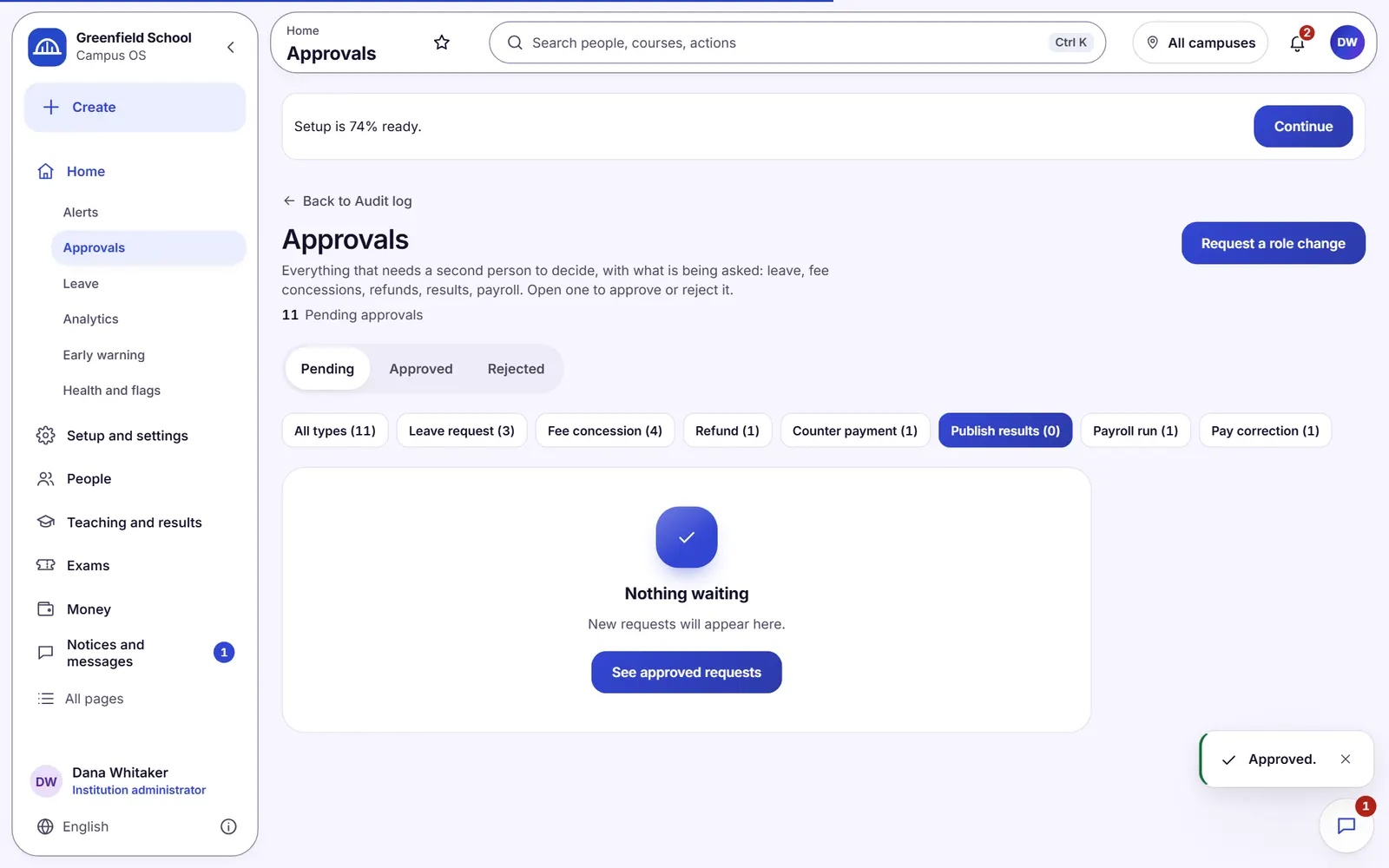
Results wait in the approvals queue. After a confirmation they are published, and the Approved tab shows the decision.

01 / 07 Approvals queue
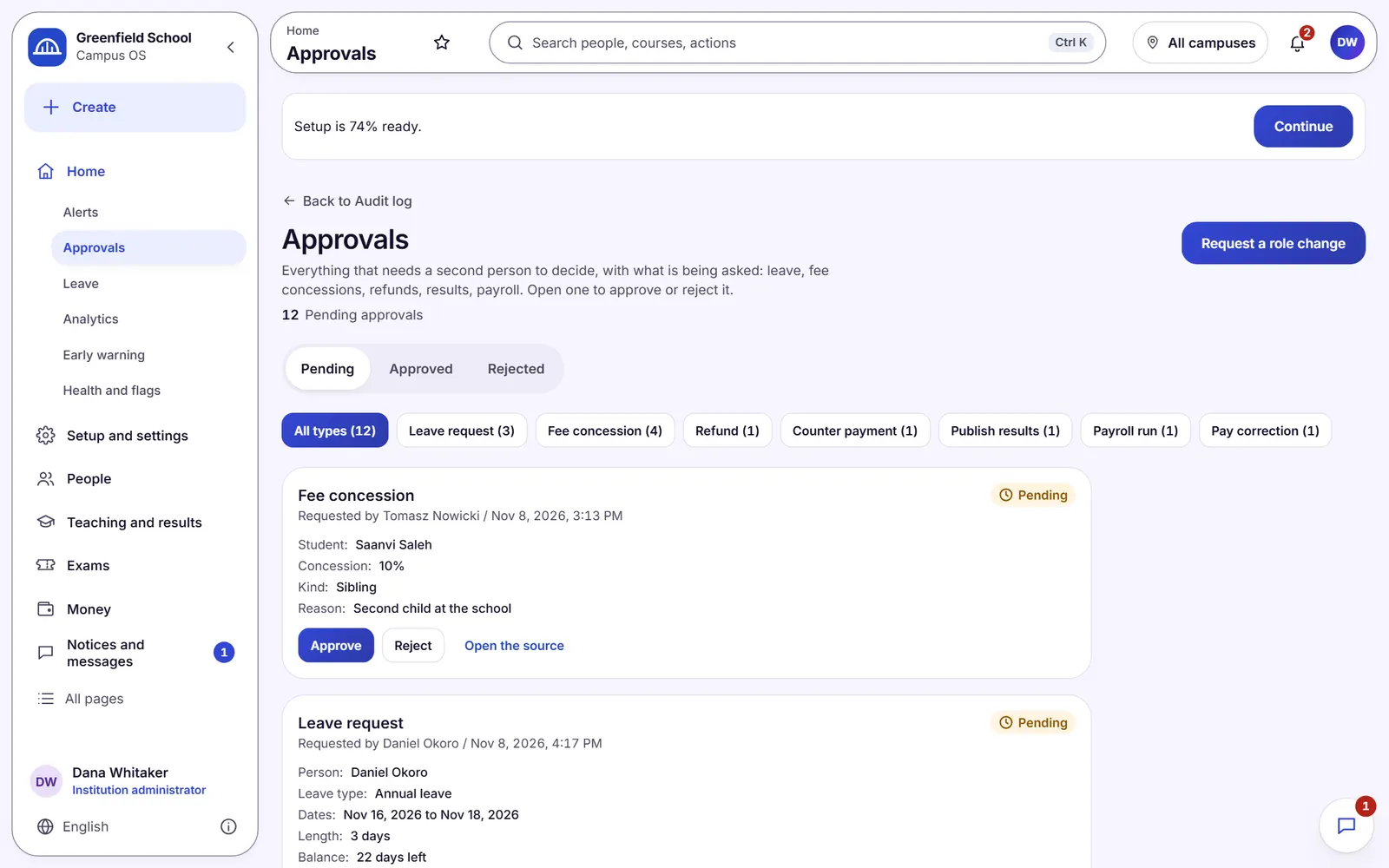
Publish results. Real product screens; Greenfield School is fictional.
Approvals queue. Greenfield School is fictional.
FIG 3.1 Approvals queue. Step 1 of 7.
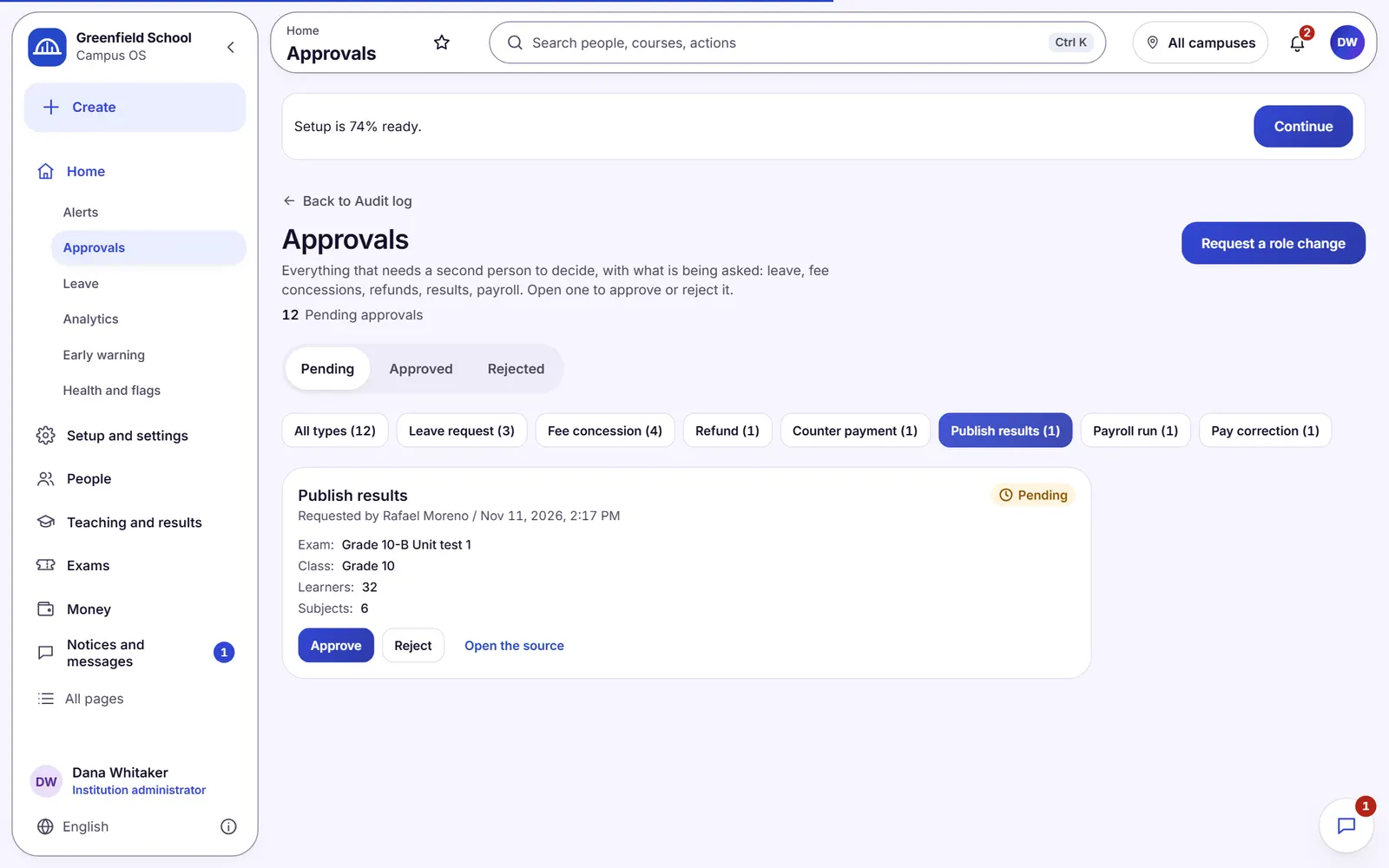
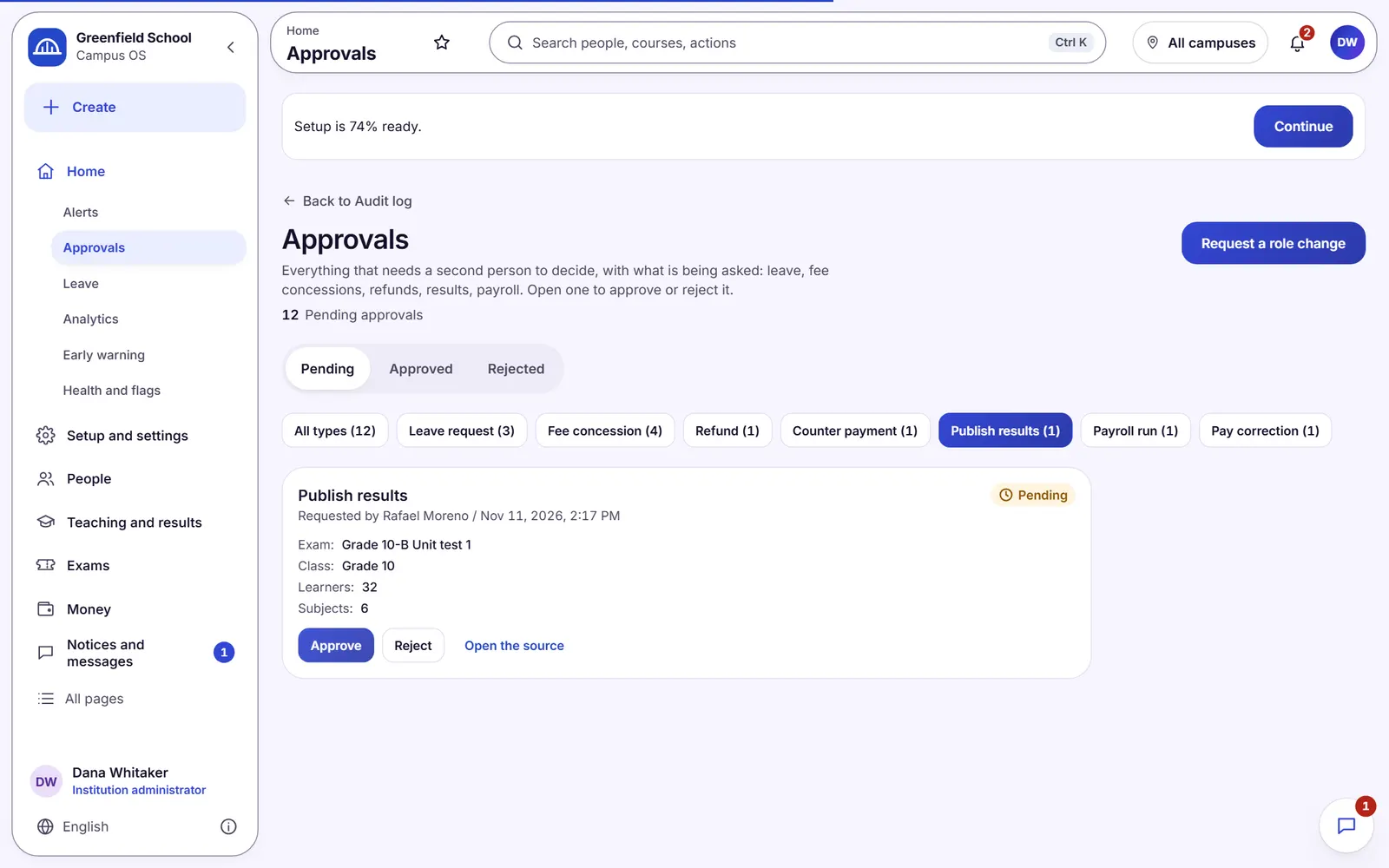
Filtered to Publish results. Greenfield School is fictional.
FIG 3.2 Filtered to Publish results. Step 2 of 7.
Result set ready to publish, hover Approve. Greenfield School is fictional.
FIG 3.3 Result set ready to publish, hover Approve. Step 3 of 7.
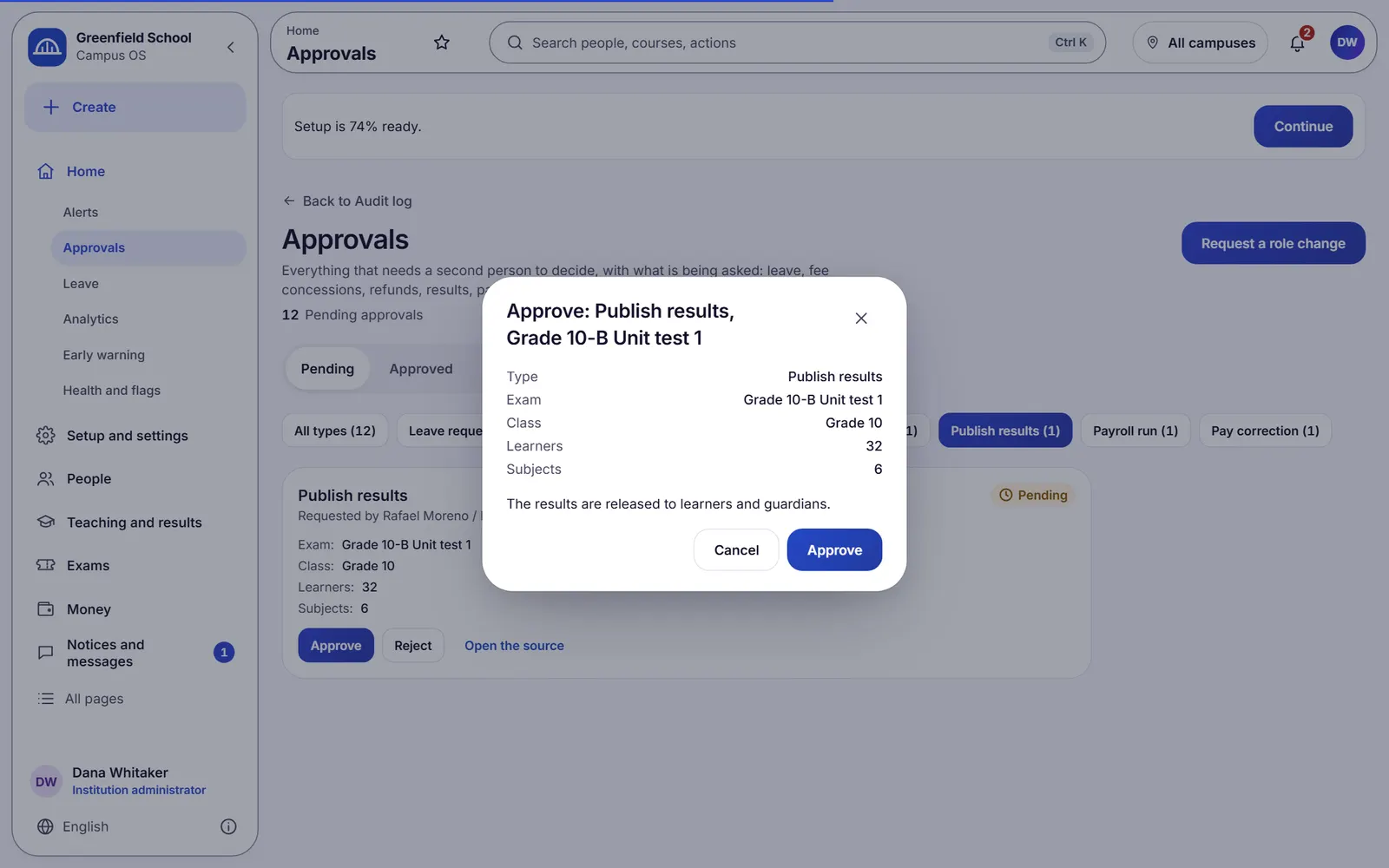
Confirm dialog before publishing. Greenfield School is fictional.
FIG 3.4 Confirm dialog before publishing. Step 4 of 7.
Publishing. Greenfield School is fictional.
FIG 3.5 Publishing. Step 5 of 7.
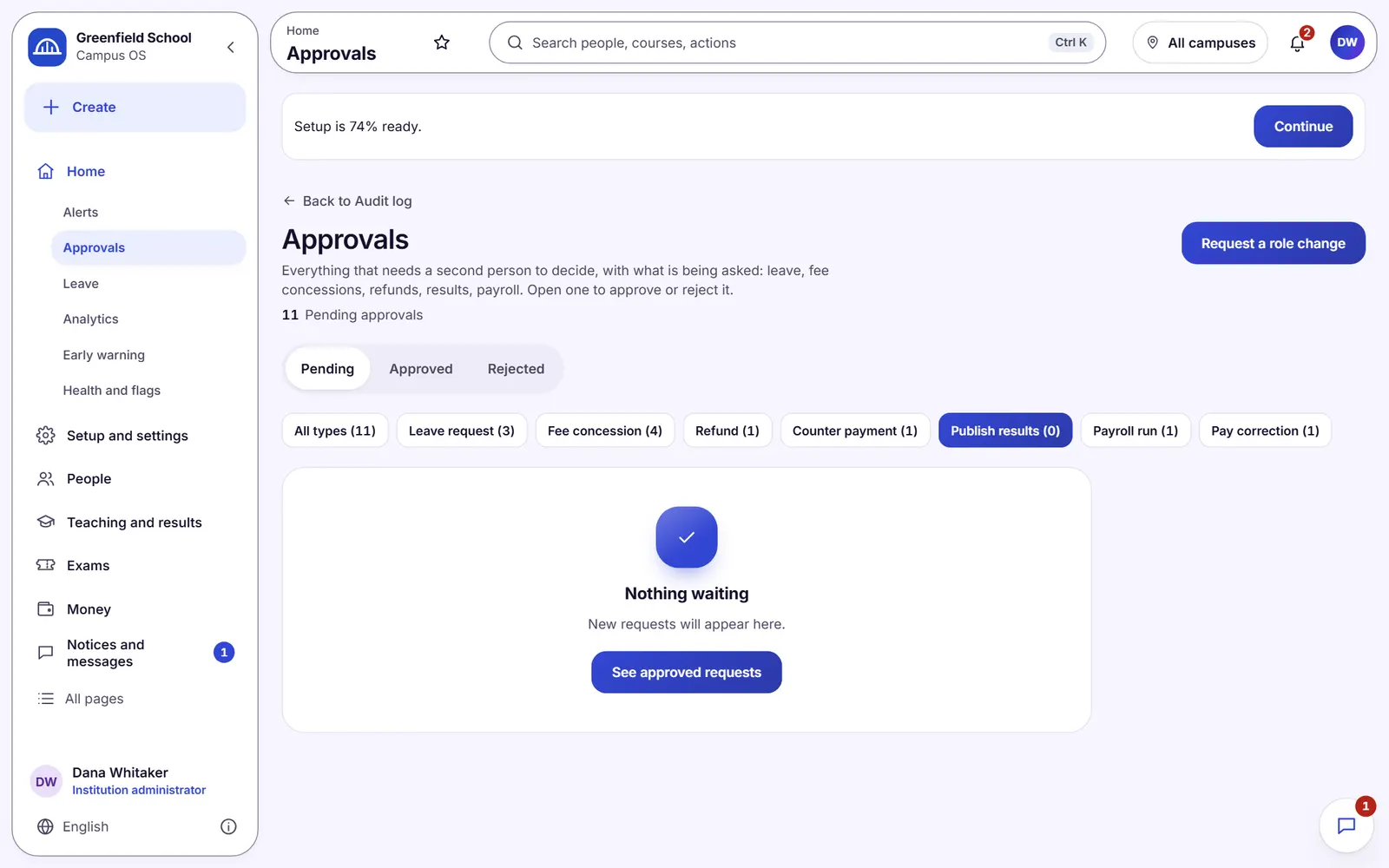
Results published, row cleared. Greenfield School is fictional.
FIG 3.6 Results published, row cleared. Step 6 of 7.
Approved tab shows the decision. Greenfield School is fictional.
FIG 3.7 Approved tab shows the decision. Step 7 of 7.

Sequence 4 of 5

Change the school colour.

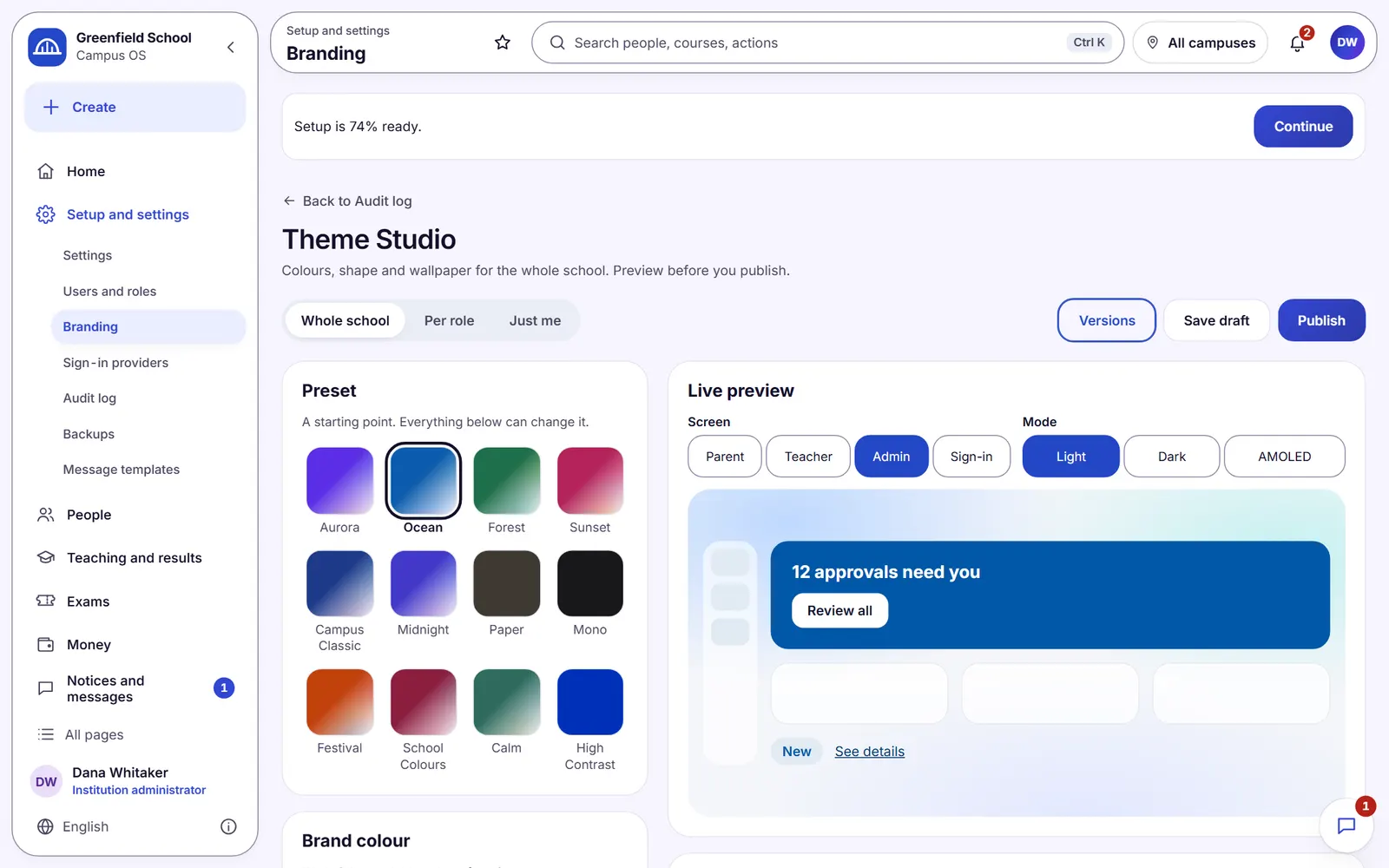
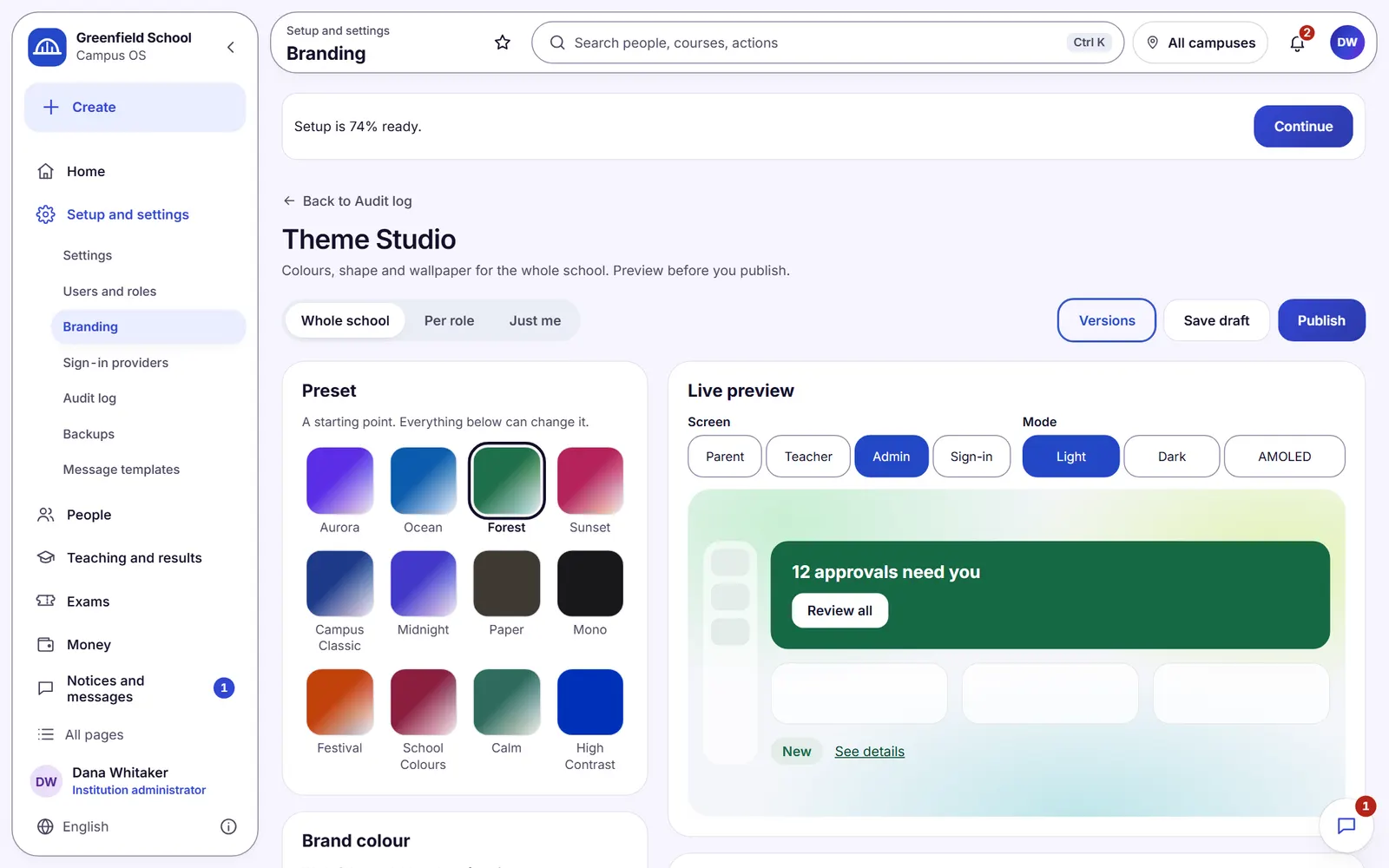
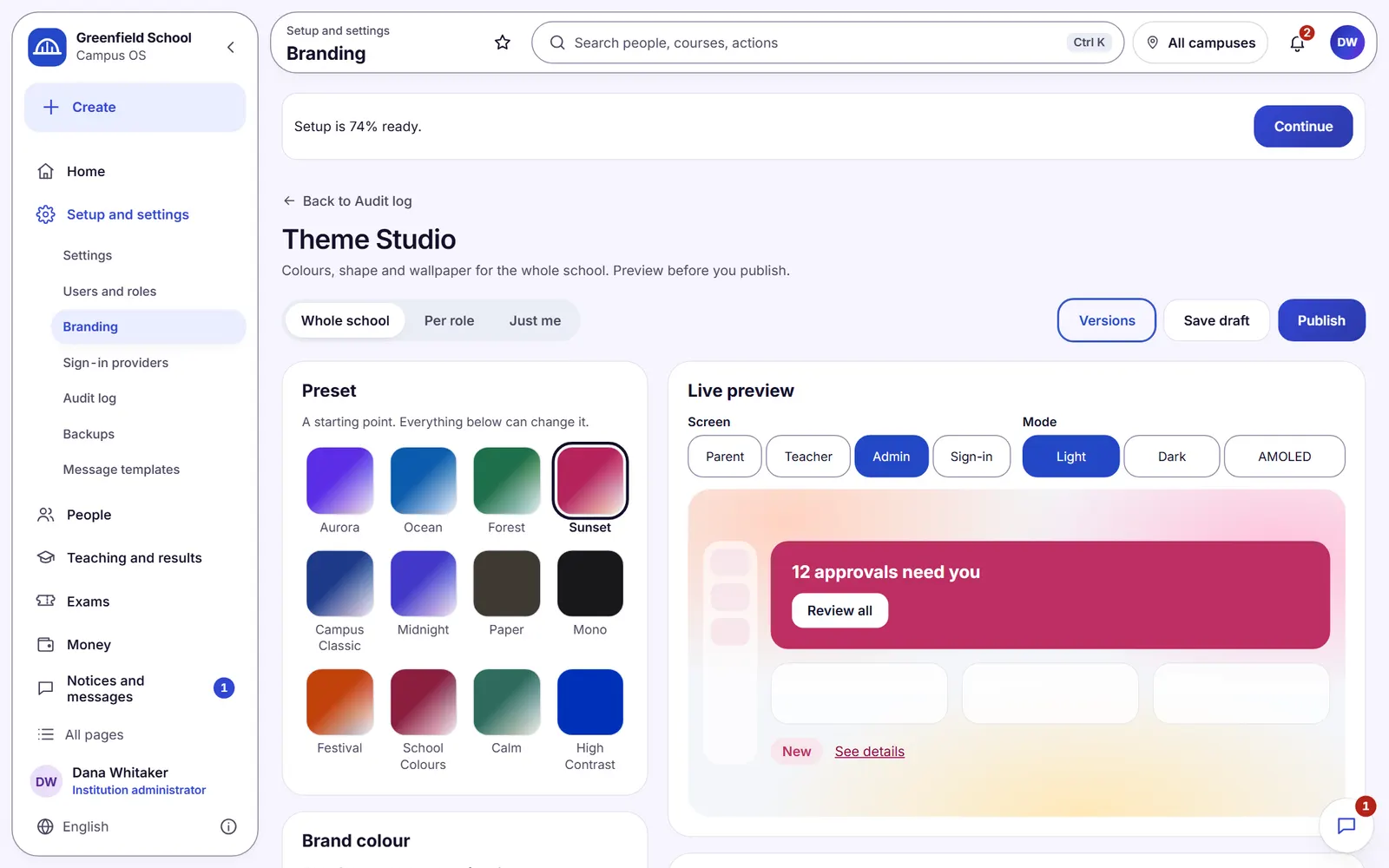
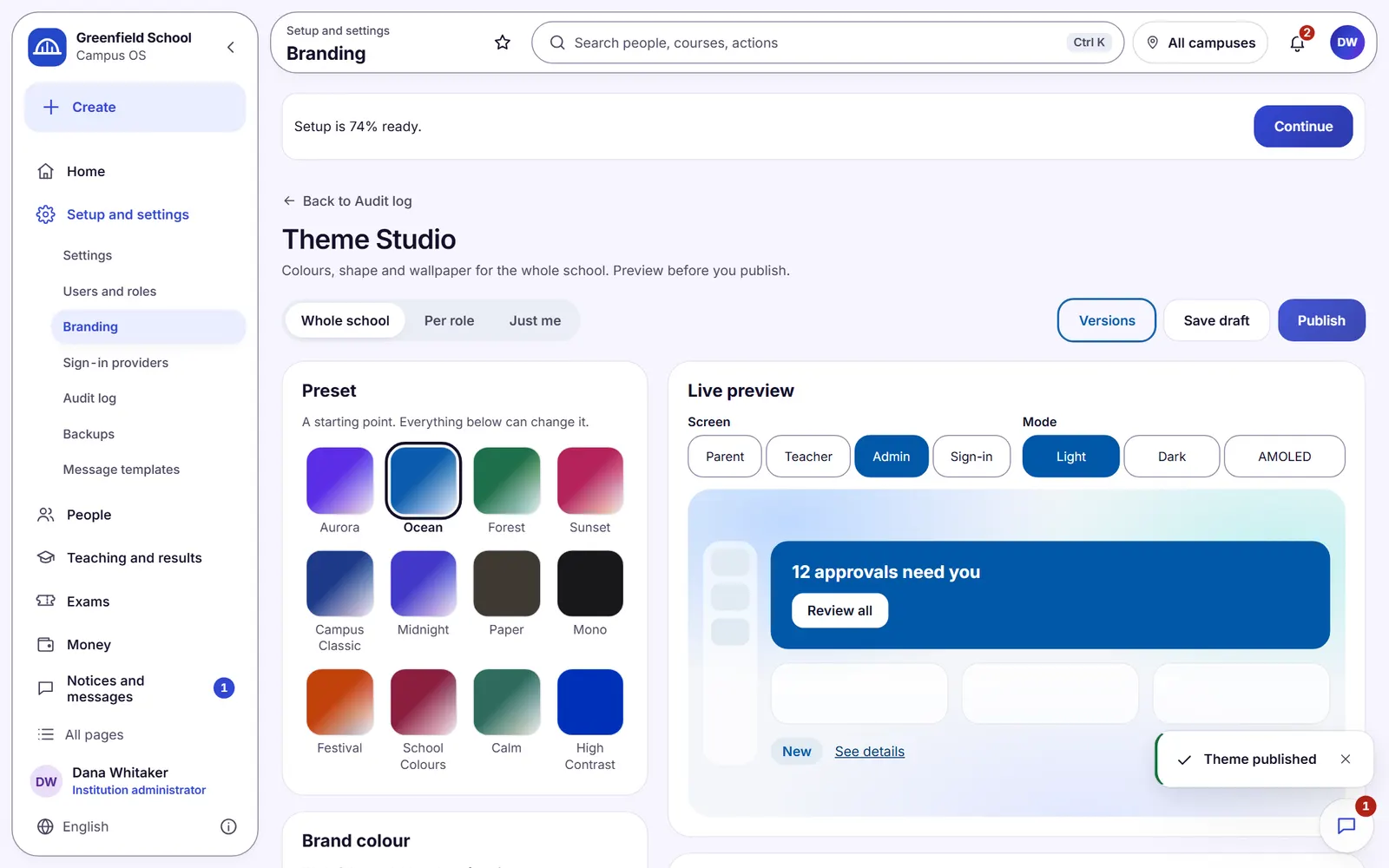
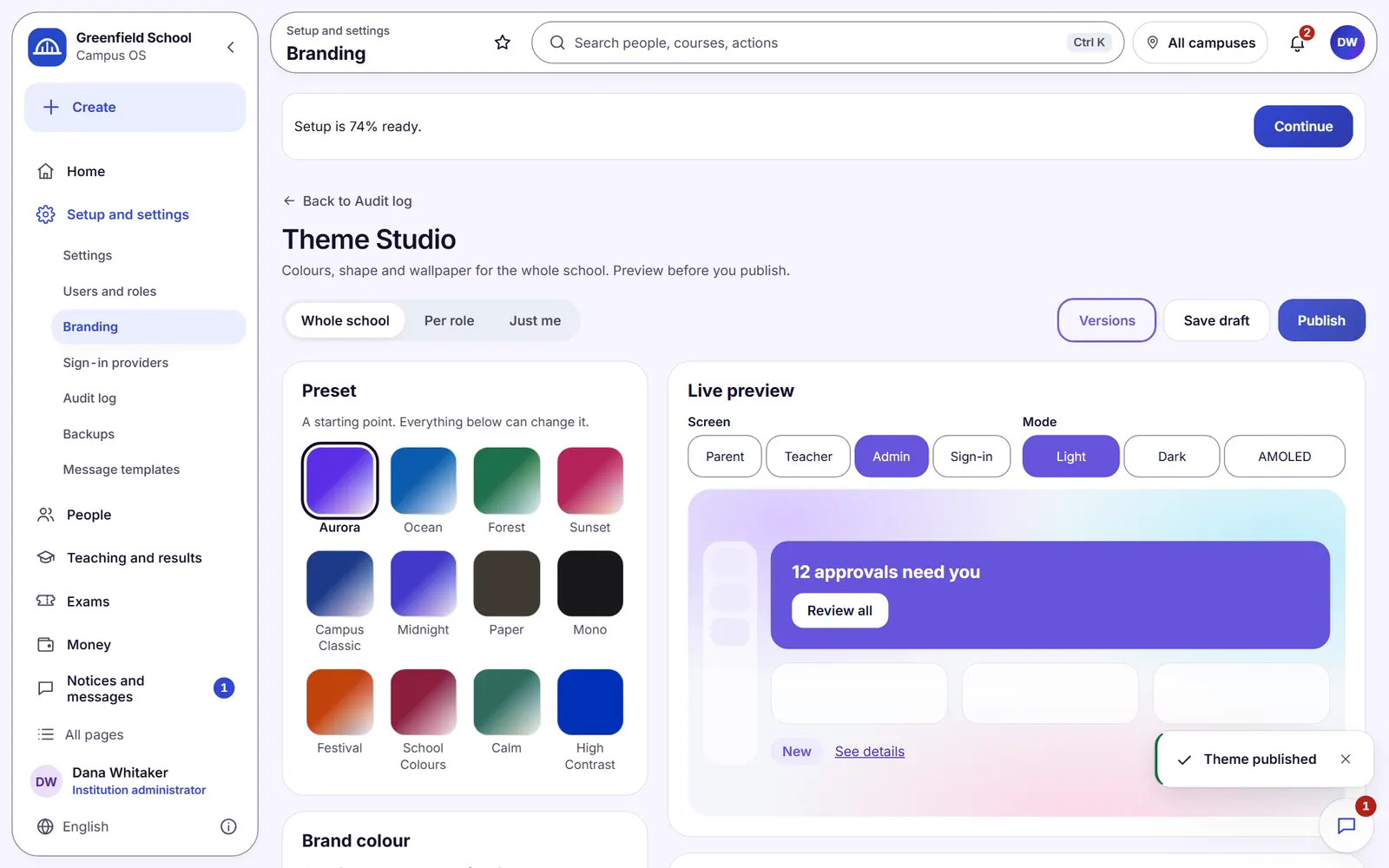
Theme Studio repaints the product from one colour.

01 / 07 Theme Studio, Aurora (default)
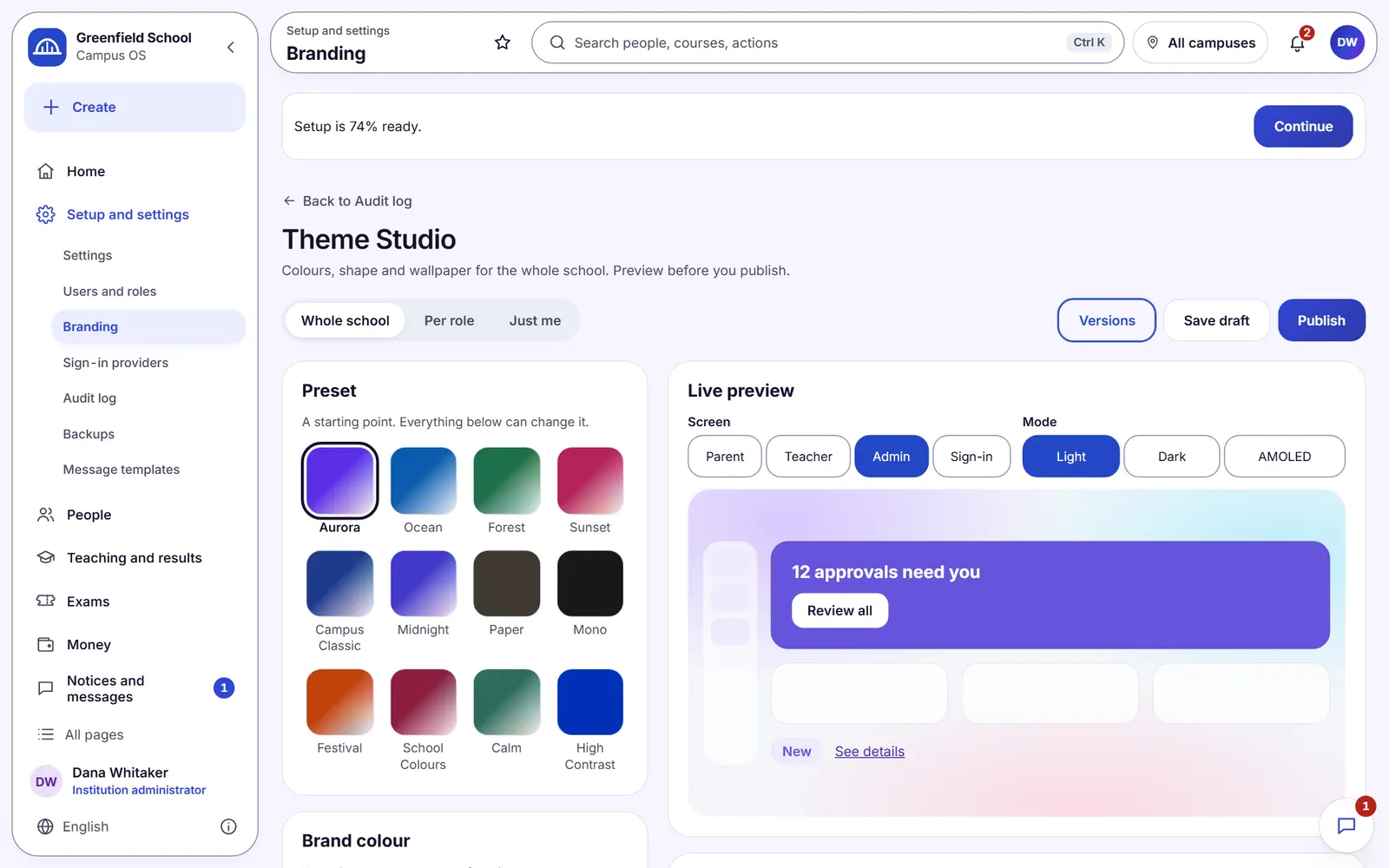
Change the school colour. Real product screens; Greenfield School is fictional.
Theme Studio, Aurora (default). Greenfield School is fictional.
FIG 4.1 Theme Studio, Aurora (default). Step 1 of 7.
Ocean preset, live preview recolours. Greenfield School is fictional.
FIG 4.2 Ocean preset, live preview recolours. Step 2 of 7.
Forest preset, live preview recolours. Greenfield School is fictional.
FIG 4.3 Forest preset, live preview recolours. Step 3 of 7.
Sunset preset, live preview recolours. Greenfield School is fictional.
FIG 4.4 Sunset preset, live preview recolours. Step 4 of 7.
Ocean published. Greenfield School is fictional.
FIG 4.5 Ocean published. Step 5 of 7.
Principal home now in the Ocean school colour. Greenfield School is fictional.
FIG 4.6 Principal home now in the Ocean school colour. Step 6 of 7.
Restored to Aurora (publish). Greenfield School is fictional.
FIG 4.7 Restored to Aurora (publish). Step 7 of 7.

Sequence 5 of 5

Switch to Arabic.

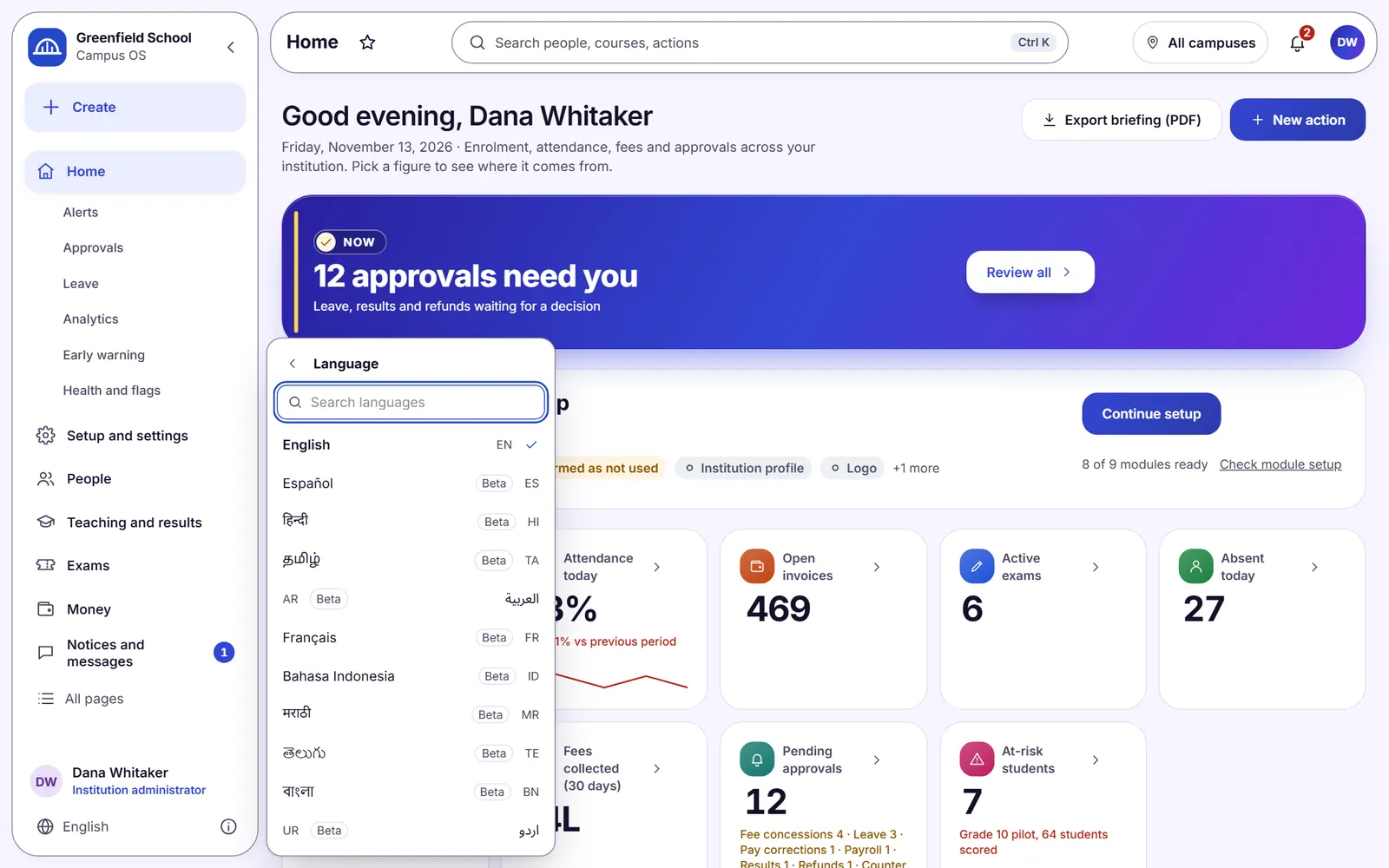
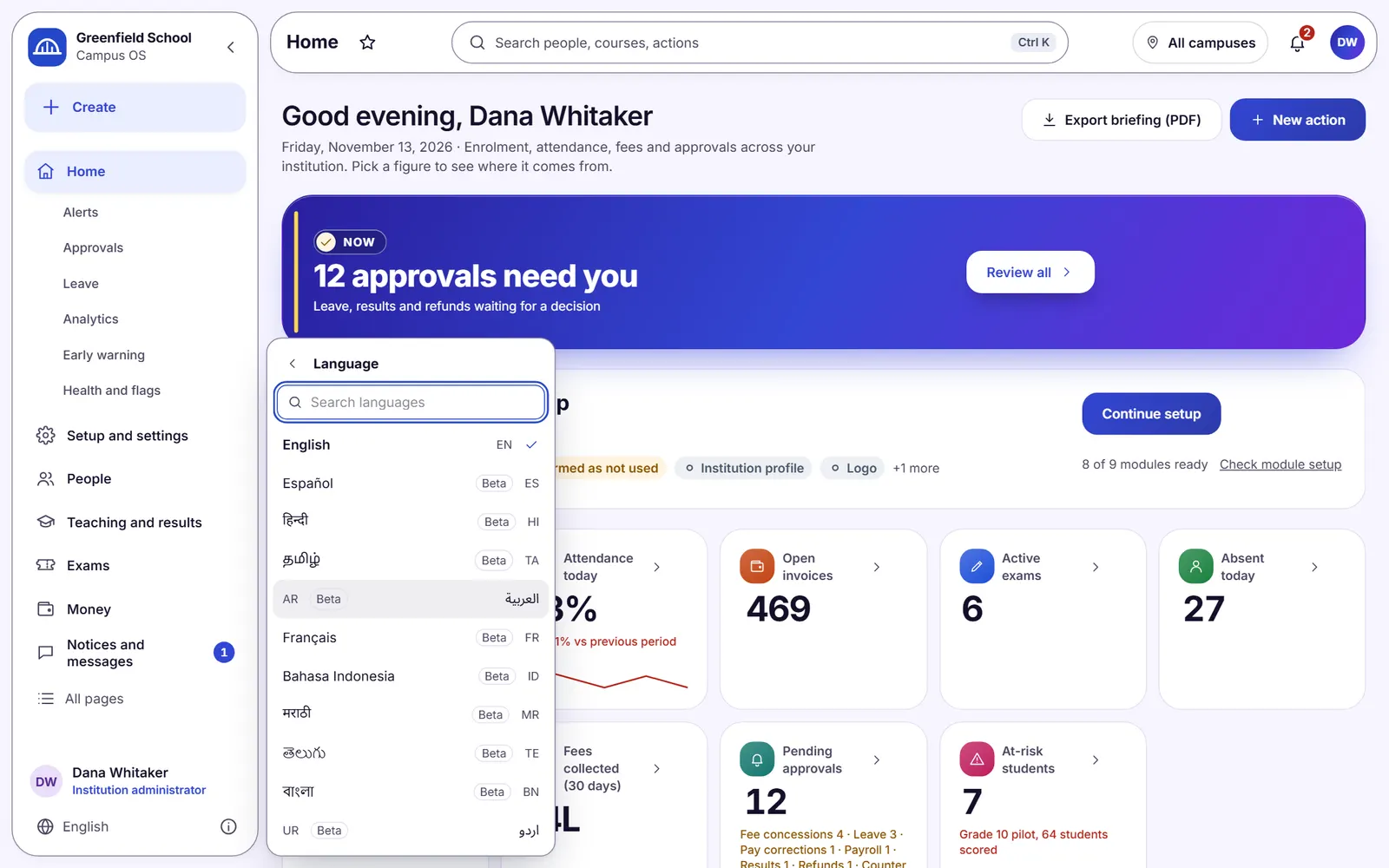
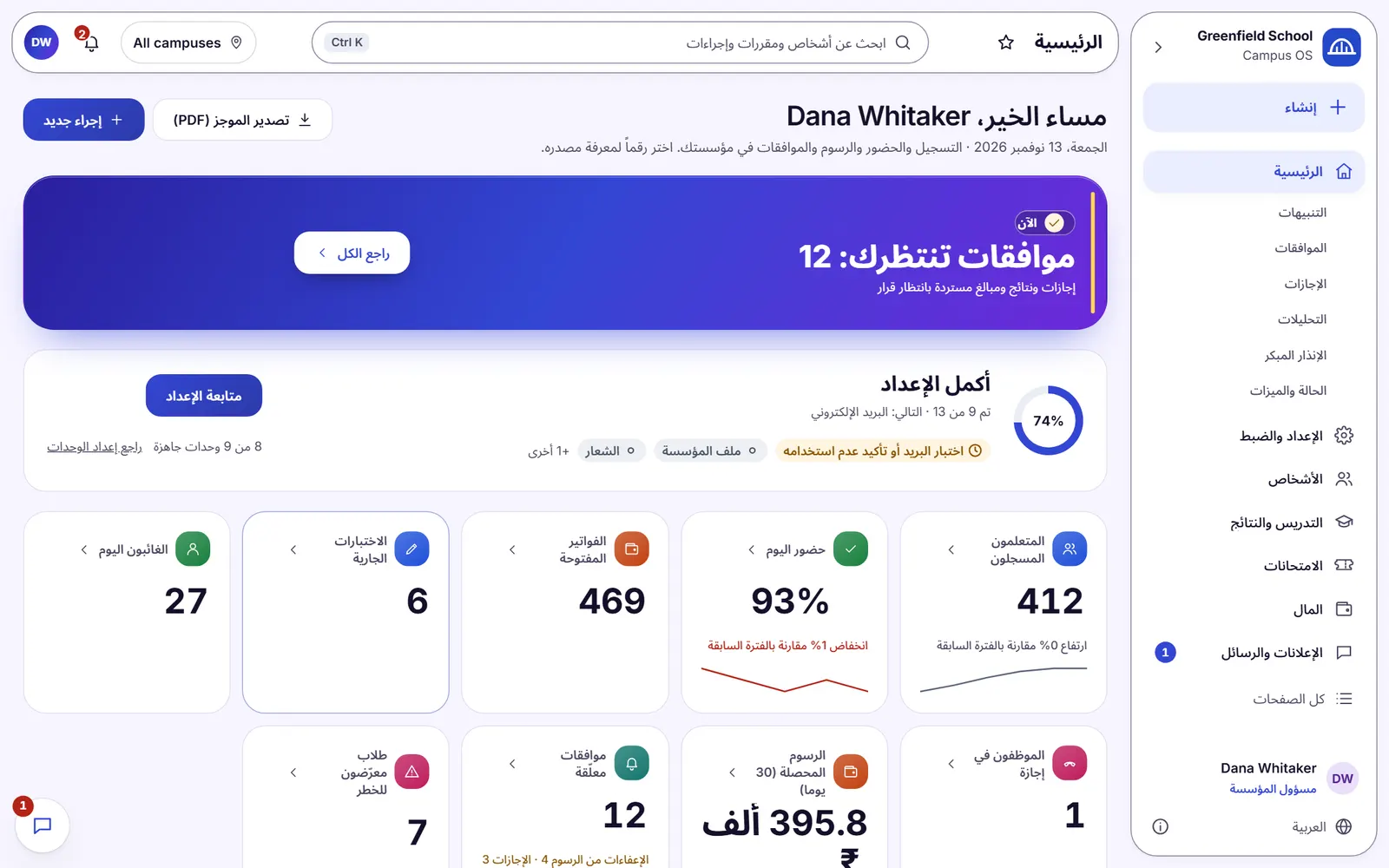
The interface mirrors to right to left. Languages other than English are machine-translated and pending native review.

01 / 06 English, left to right
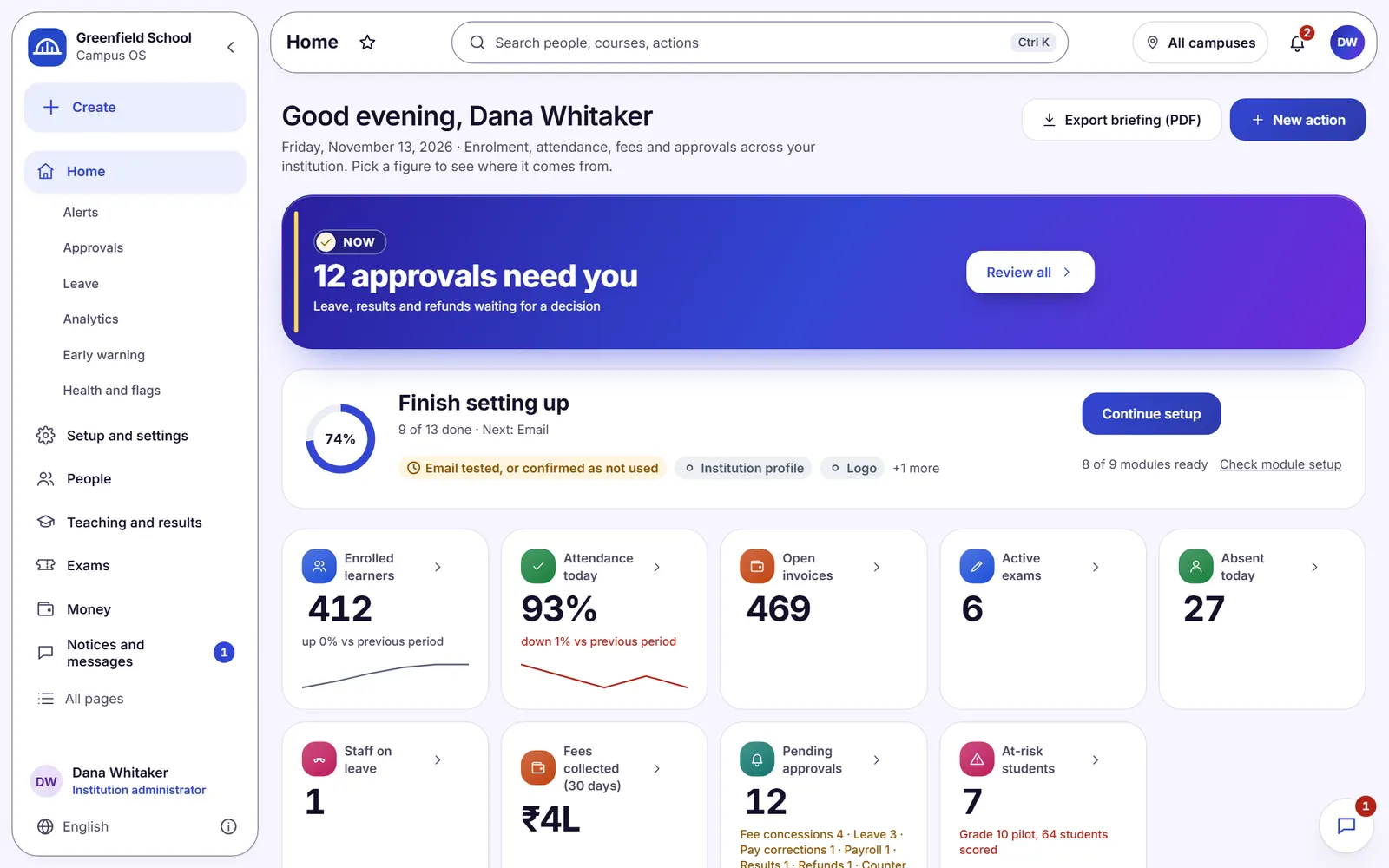
Switch to Arabic. Real product screens; Greenfield School is fictional.
English, left to right. Greenfield School is fictional.
FIG 5.1 English, left to right. Step 1 of 6.
Language menu open, 11 languages. Greenfield School is fictional.
FIG 5.2 Language menu open, 11 languages. Step 2 of 6.
Arabic highlighted. Greenfield School is fictional.
FIG 5.3 Arabic highlighted. Step 3 of 6.
Arabic applied, layout mirrors to right to left. Greenfield School is fictional.
FIG 5.4 Arabic applied, layout mirrors to right to left. Step 4 of 6.
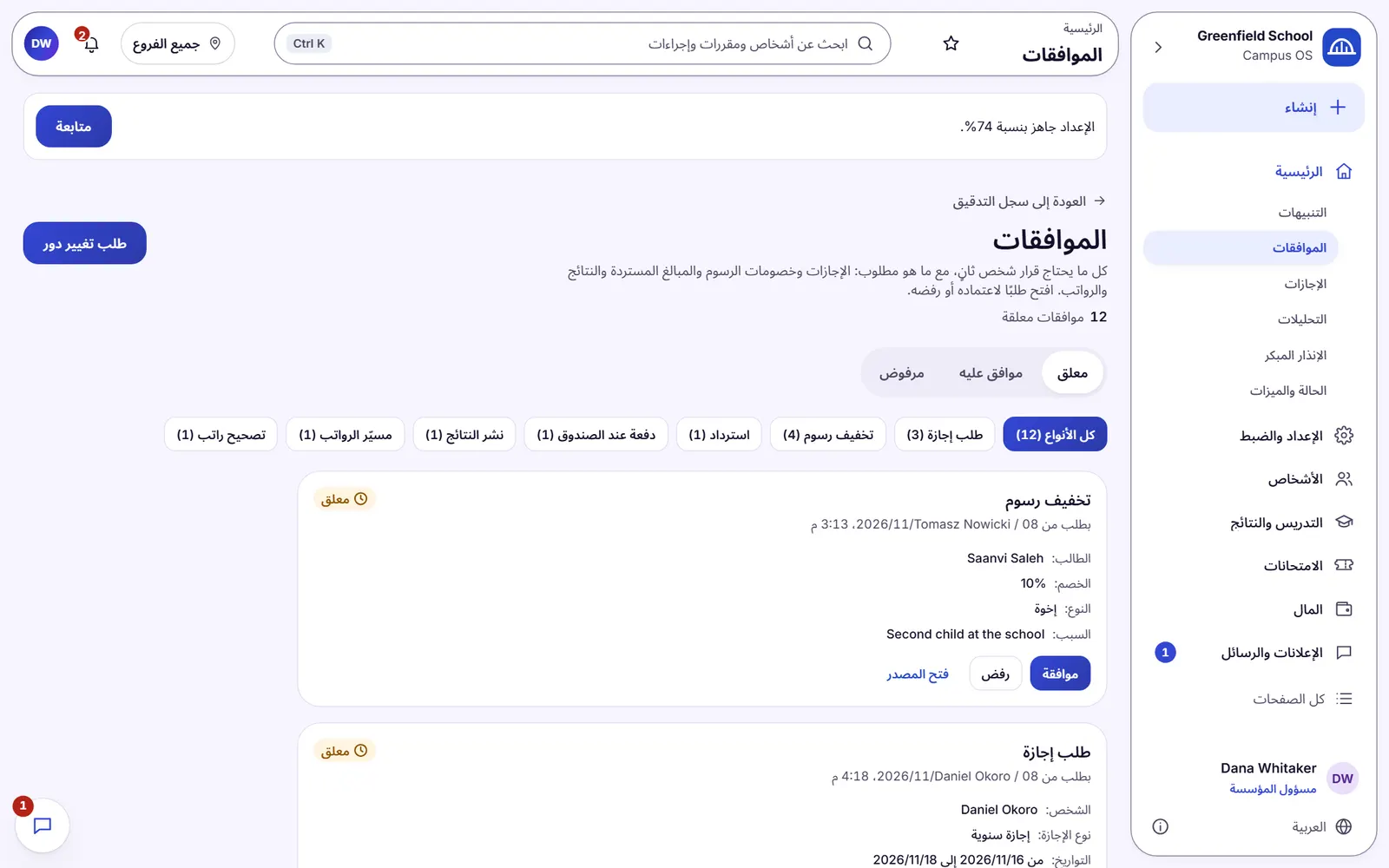
Approvals in Arabic RTL. Greenfield School is fictional.
FIG 5.5 Approvals in Arabic RTL. Step 5 of 6.
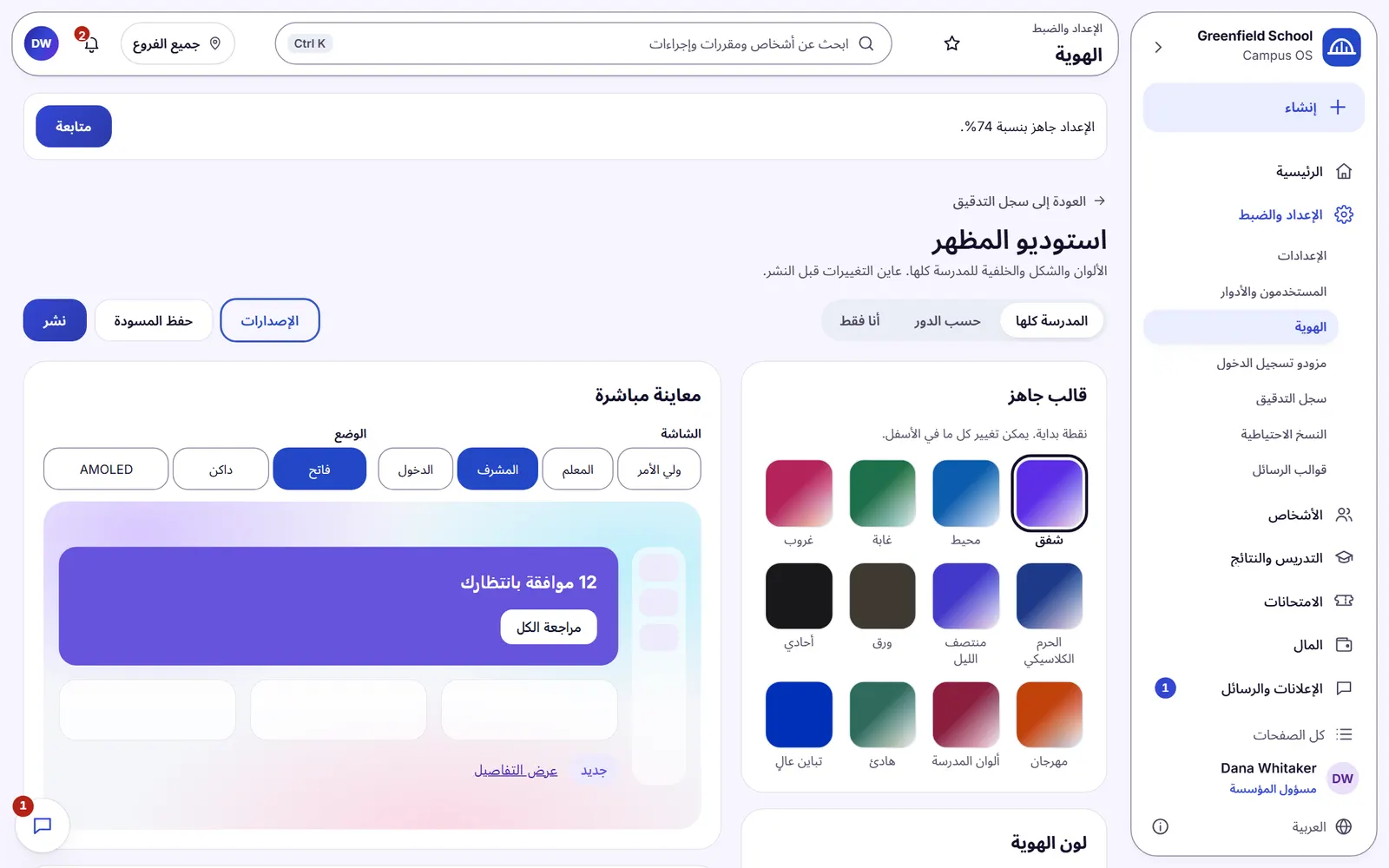
Theme Studio in Arabic RTL. Greenfield School is fictional.
FIG 5.6 Theme Studio in Arabic RTL. Step 6 of 6.

Now see it live.

A guided session on demo data, shaped around your role, institution type and country.